
Grouping Studio
A free seating chart and group maker for teachers. Start with the User Guide or the one-page Quick Start, then open Grouping Studio.
Grouping Studio:
Seating Chart &
Group Builder
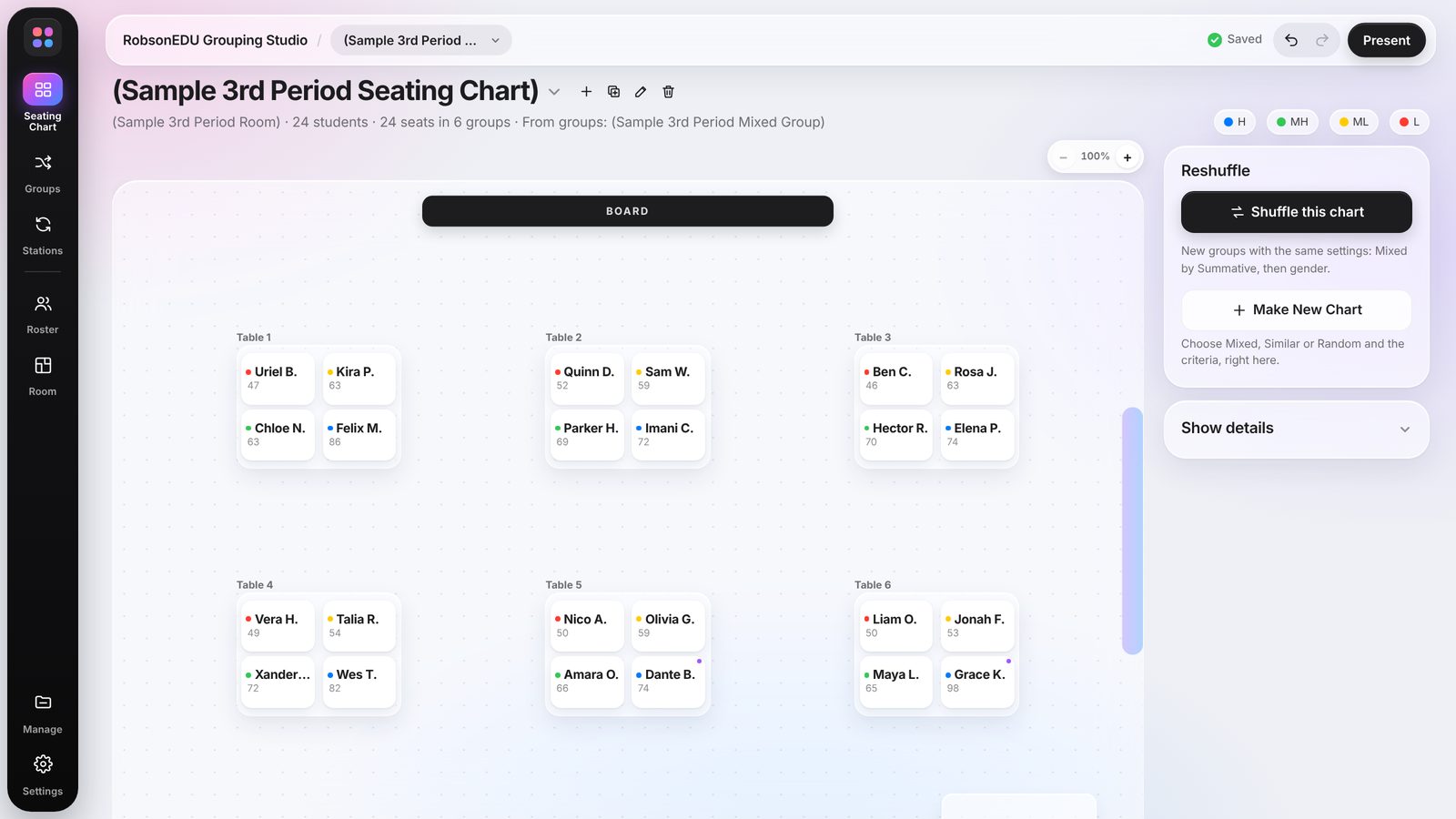
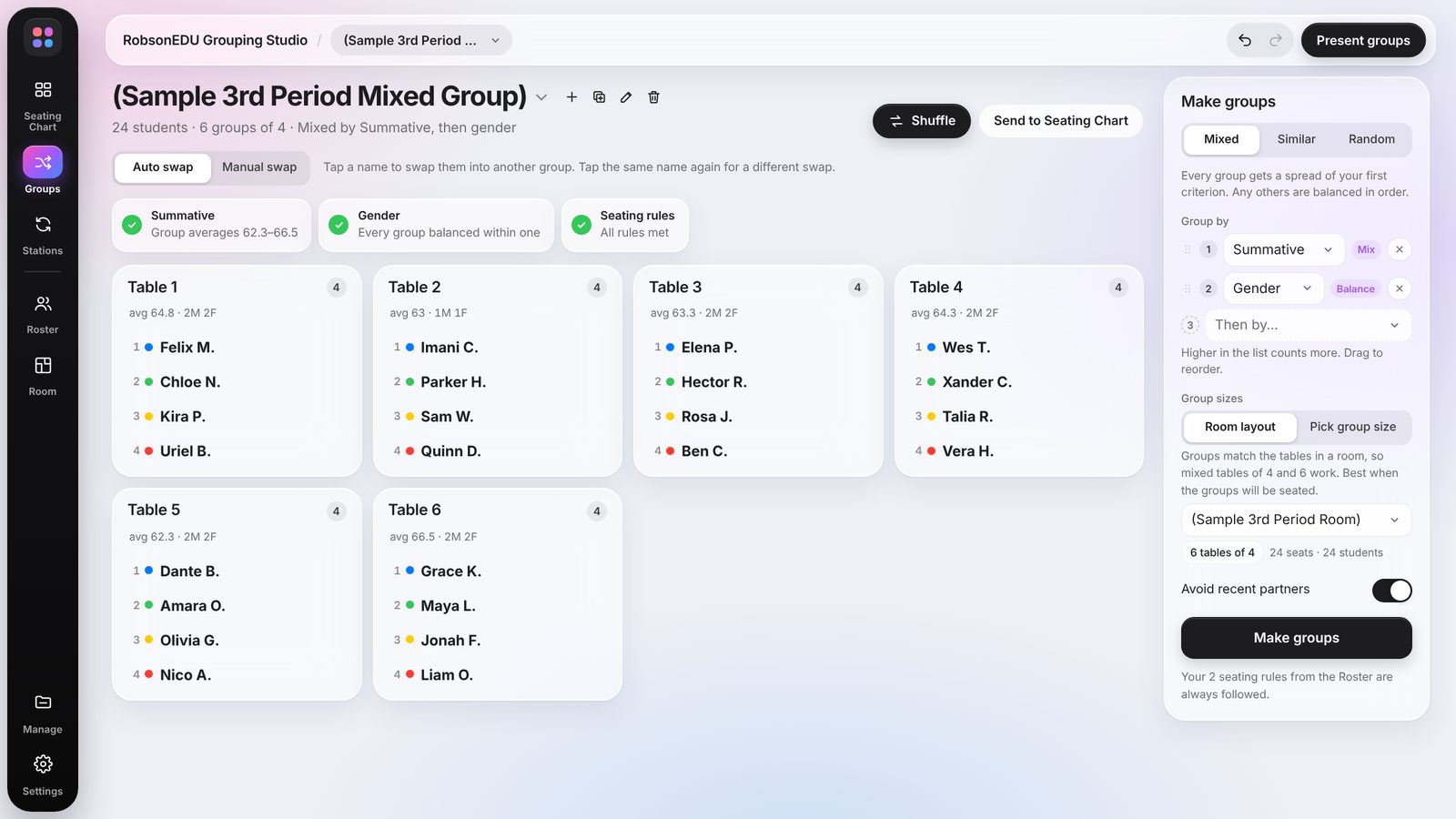
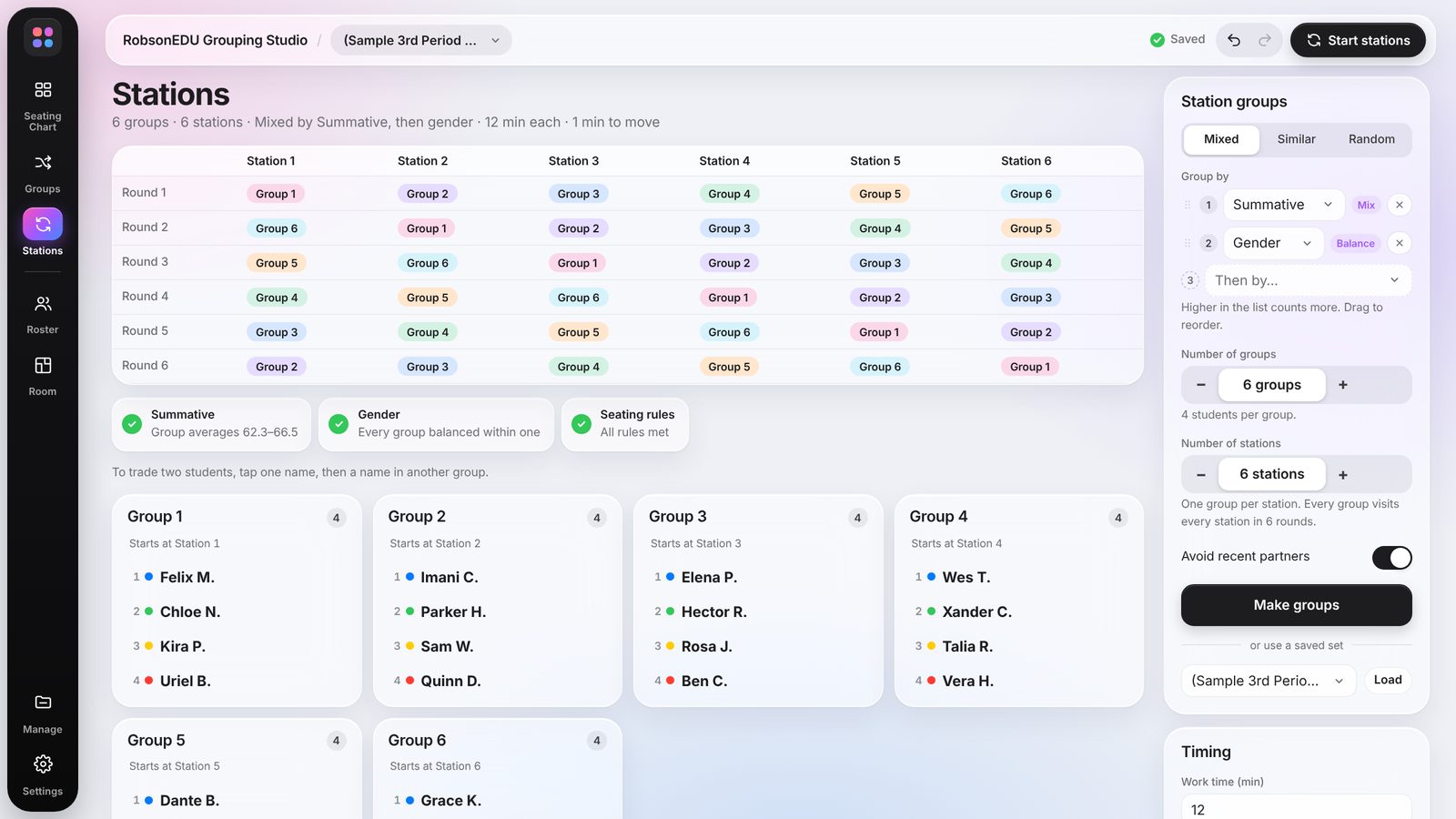
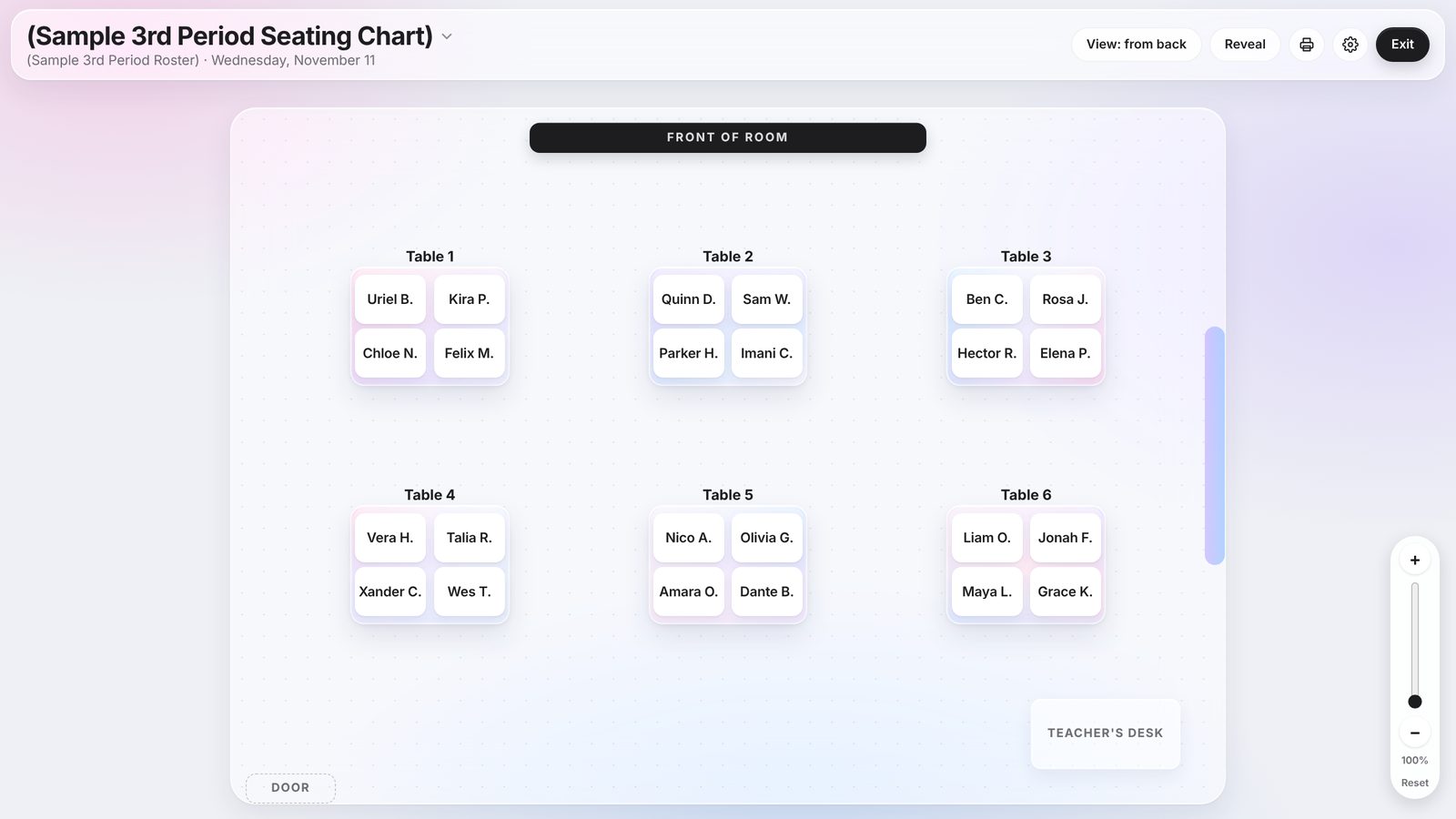
Build your room once. Make balanced seating charts and groups in a few clicks. Add your roster, and Mixed, Similar or Random groups drop straight into your tables. Swap students, present names only to the class, print a copy for a sub, and run timed stations.
Free. No sign-in. Student data stays on your device.
New here? A short tour with a sample class starts the first time you open the tool.
Jump Straight to a Section
Looking for grouping ideas? See Grouping Strategies for strategic and random grouping approaches, the Grouping README and the original Google Sheets grouping tool.
How to Use Grouping Studio
Written by Allen Robson, District Instructional Coach and secondary ELA teacher
Grouping Studio: Seating Chart & Group Builder is a free seating chart and group maker for teachers. Build your room once, add your class list and data, and make balanced groups and seating charts in a few clicks. Mixed, Similar or Random. When you present a chart to the class, it shows names only. Print it easily, and run timed station rotations. No sign-in, no ads, and student data stays on your device.
How I use it in my classroom
I built Grouping Studio because it's the tool I always wanted. I manually created mixed seating charts based on ability scores and personality types. It took a lot of time to make a chart for my classes, but the impact on behavior and learning outcomes was significant. However, it was time consuming. The downside was that if I wanted to make short-term or on-the-fly changes, that created a significant issue. For example, there were times when I wanted to do similar-ability groups for a single lesson or activity, but I couldn't find the time to make all new seating charts for one lesson here and there. I also wanted to make quick groups for station rotations at different times, but again, the time. With this tool, I could literally do all of those things on the fly, when needed, with a simple click.
To group students by academic ability, you can use summative test scores, reading levels or other classroom data. For behavior, you can use your own observations of characteristics like who's more or less talkative, or work ethic, or even something like a personality assessment. I use the Colors Personality Assessment because it goes a bit deeper in terms of who is a supporter, analyst, organizer or energizer. You can use these personality characteristics to really strategize and maximize your groups.
Mixed-ability grouping is great to tie into your seating chart when using cooperative learning and Kagan strategies like RoundRobin, RallyCoach or RoundTable. Having a system to organize student interaction has amazing benefits for efficiency and classroom management. I like to use Similar groups when differentiating instruction for station rotations or leveled practice. I even like Similar groups for projects or other group or cooperative work. There's even a Random grouping option for things like debates or Socratic Seminar–type activities. I like using two random groups to set up the inside and outside circles for class discussion.
Get started in five steps
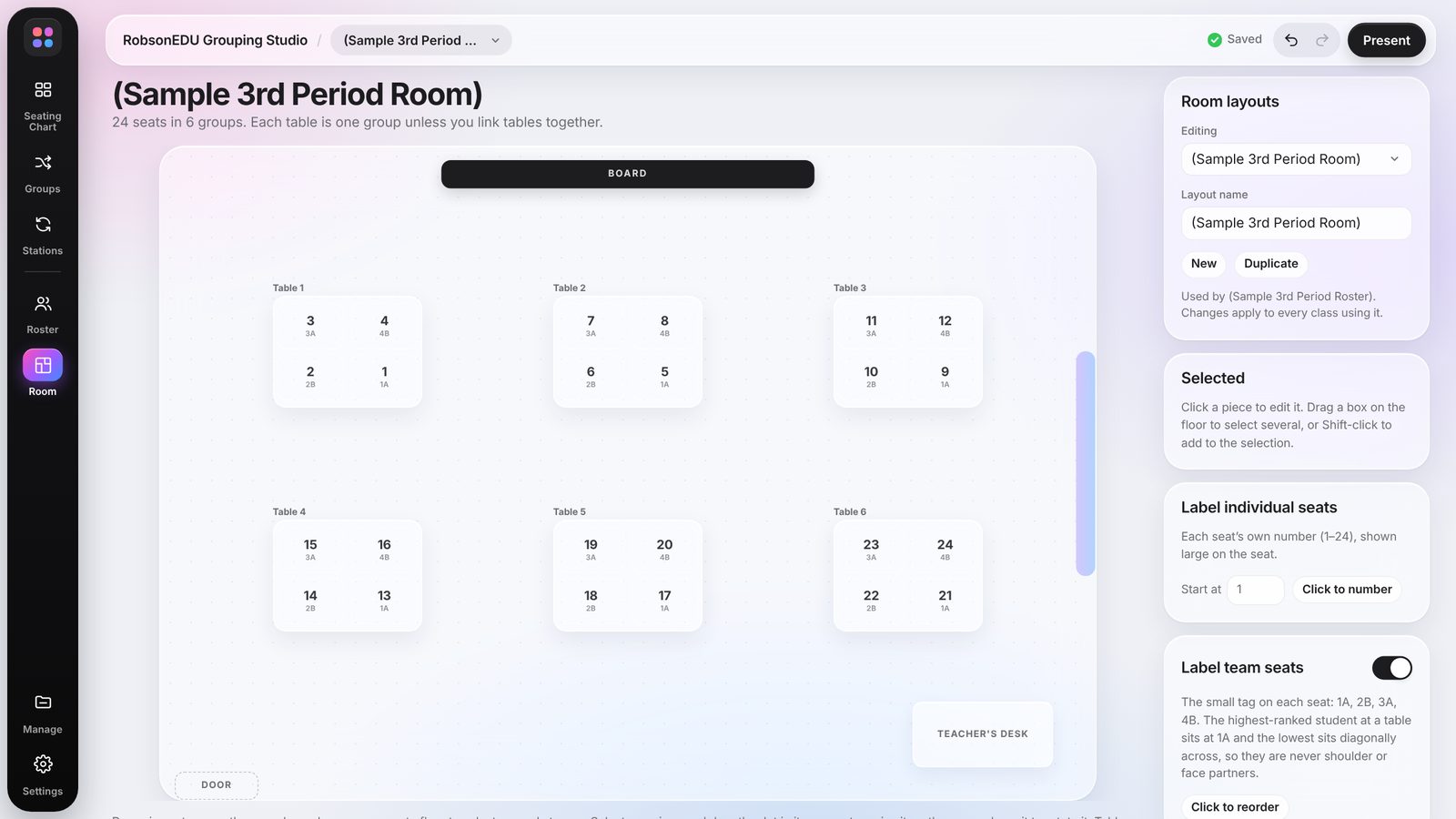
- Build your room. Start from a ready-made layout or drag in desks, pods and tables. Add the board and door so the tool knows where the front is.
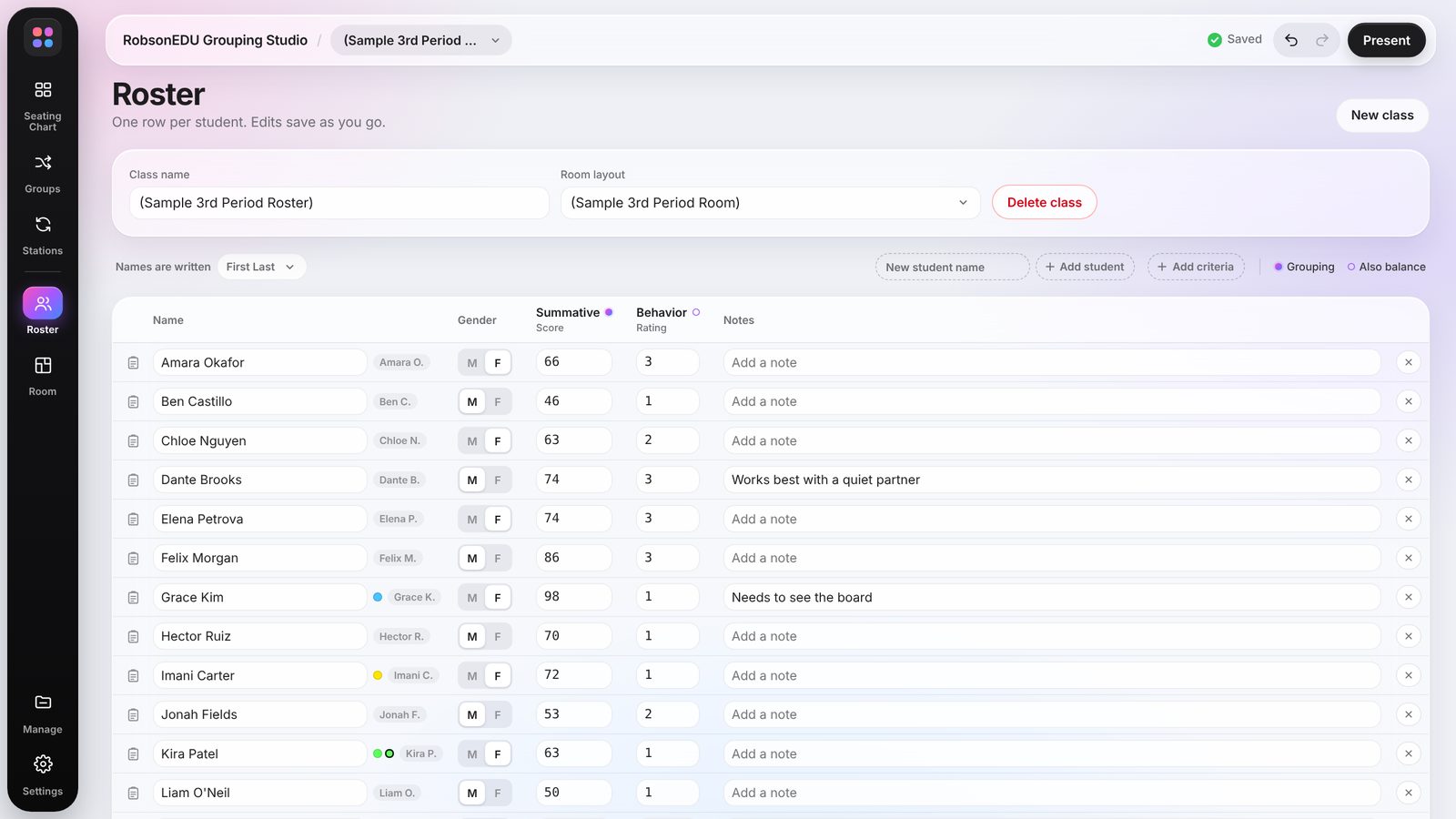
- Add your class. Paste your class list or import it from Google Sheets. Add the data you want to group by, such as a test score or reading level.
- Make groups (optional). Choose Mixed, Similar or Random, and check how balanced the groups came out.
- Make the seating chart. Groups drop straight into your tables. Swap any two students with a tap.
- Present it. Show the class the chart with names only, or print a copy for a sub.
For every button and option, see the full User Guide or the one-page Quick Start.
Which grouping should I use?
| Mixed | Cooperative learning and team work. Every group gets a spread: in groups of 4, one high, one medium high, one medium low and one low student. |
| Similar | Small-group instruction, intervention or enrichment. Students are grouped in bands, highs together and lows together. |
| Random | Fresh partners and community building. A fair shuffle that still follows your seating rules. |
| Room layout size | When the groups will be seated: groups match your tables, even a mix of 4s and 6s. |
| Pick a group size | Partner work and activities away from the tables: every group is the same size. |
Teacher questions
How do I make balanced groups?
Add a score or level to your class list, then choose Mixed and group by it. You can balance more criteria underneath it, like a second score or gender. Check cards at the top show how balanced the groups came out. (User Guide, section 4)
Can I make a seating chart by reading level or test scores?
Yes. Add the scores to your roster, go to Seating Chart and choose Mixed or Similar. You don't have to make groups first. The tool goes straight from your roster to a full seating chart. (User Guide, sections 3 and 5)
How do I set up Kagan team seats?
Tables in Grouping Studio carry team seat labels (1A, 2B, 3A, 4B). With Mixed groups, the highest-ranked student sits in 1A and the lowest in 4B, diagonal from each other, so shoulder partners and face partners line up. (User Guide, sections 2 and 5)
How do I keep two students apart, or seat a student near the front?
Add seating rules on the Roster page. Keep students apart, keep a student near the front or near the door, and note supports such as an IEP or 504. Every grouping and chart follows your rules. (User Guide, section 3)
Can I show the chart to my class without showing scores?
Yes. Present view shows names only, with a reveal animation, and can flip to show the room from the front or the back. Your data stays hidden. (User Guide, section 6)
Can I print a seating chart for a sub?
Yes. Print from Present view to get a clean copy of the chart for a substitute or your sub folder. (User Guide, section 6)
Can I import my class list from Google Sheets?
Yes. Click Import from Google Sheets on the Roster page and pick your sheet. The tool can open only the file you choose, and the list goes straight to your browser. Copy and paste works too, with no sign-in. (User Guide, section 3)
Where is my class data saved?
In your browser, on your own device. Nothing is sent to RobsonEDU. Download a backup about once a month from Settings, so you can move your data to another computer or restore it. (User Guide, section 9)
Grouping Studio is free, ad-free and needs no sign-in. Student data stays on your device. Read how we handle privacy.