
Timers
Timers are often underutilized, but they can make a big difference! Use a timer for everything: work time, share time, transitions, and more. You'll find that using timers helps things run more smoothly and keeps everyone on track.
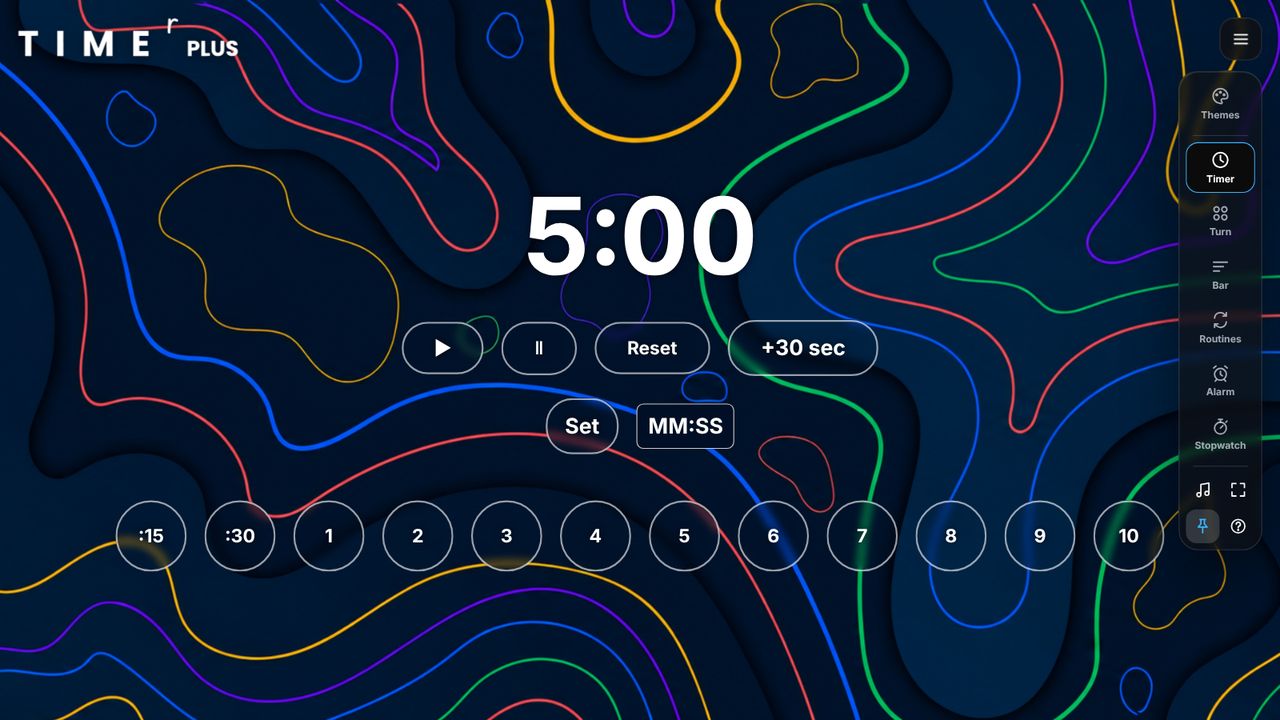
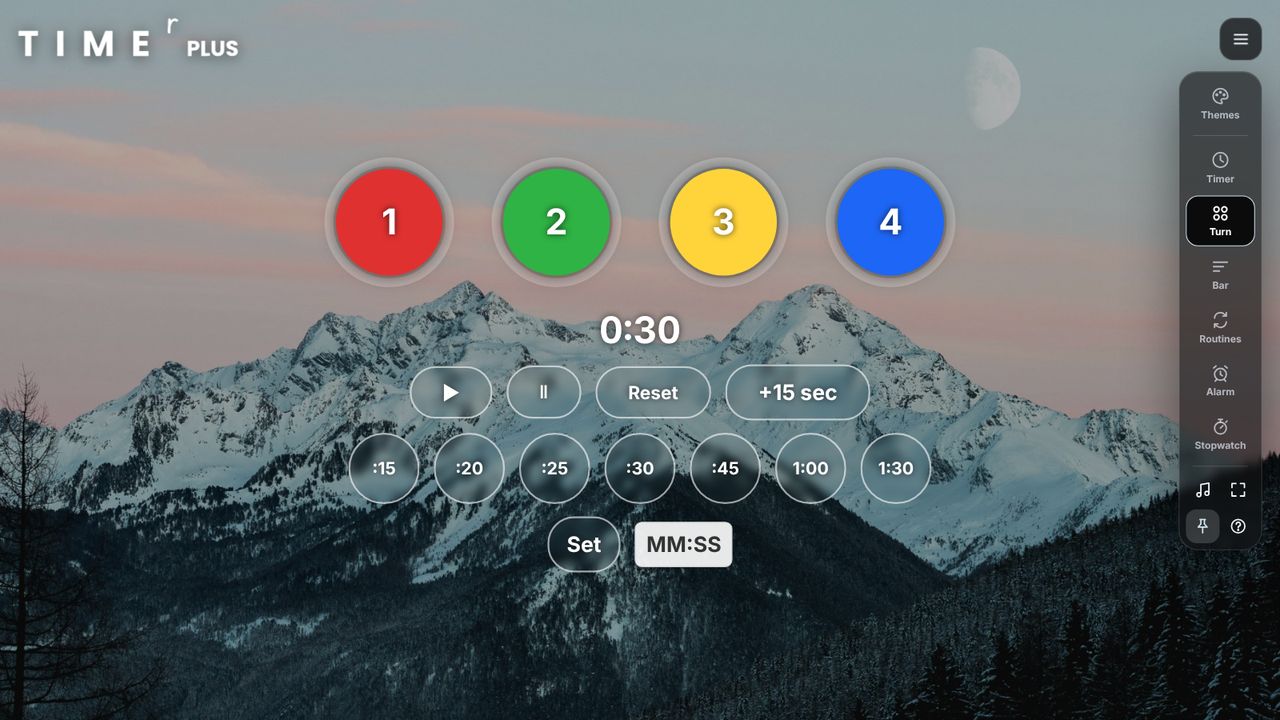
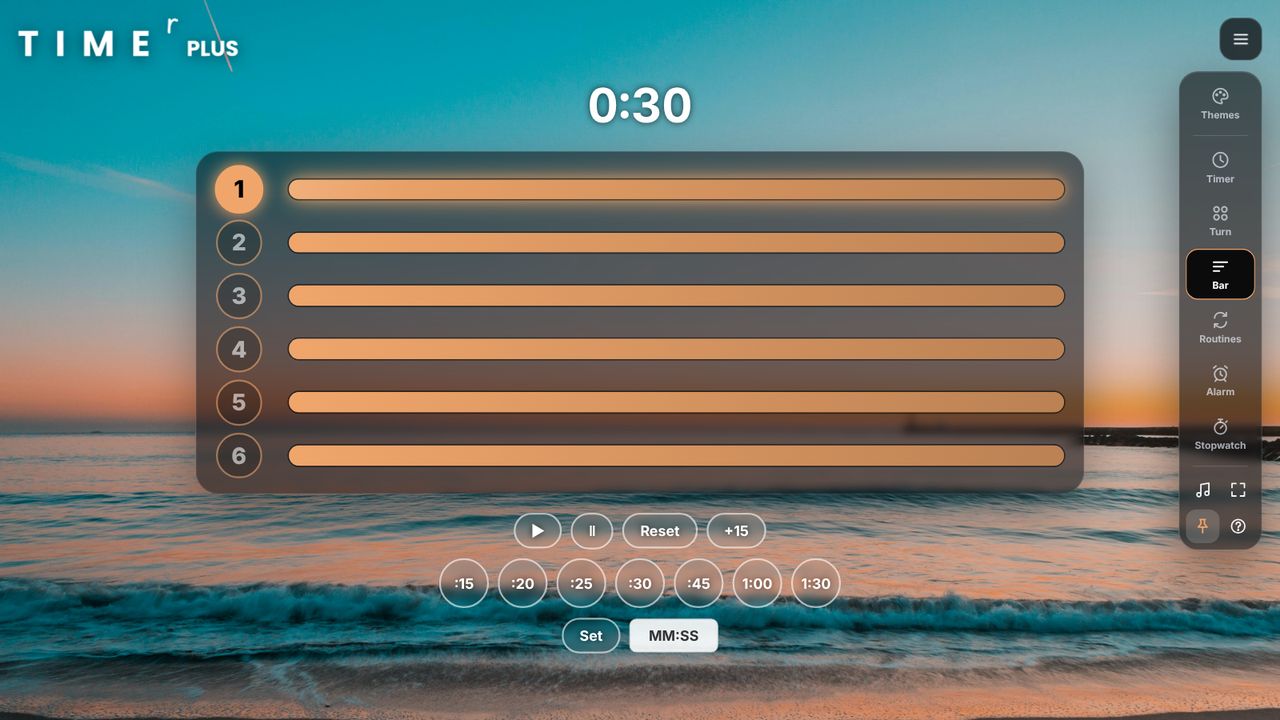
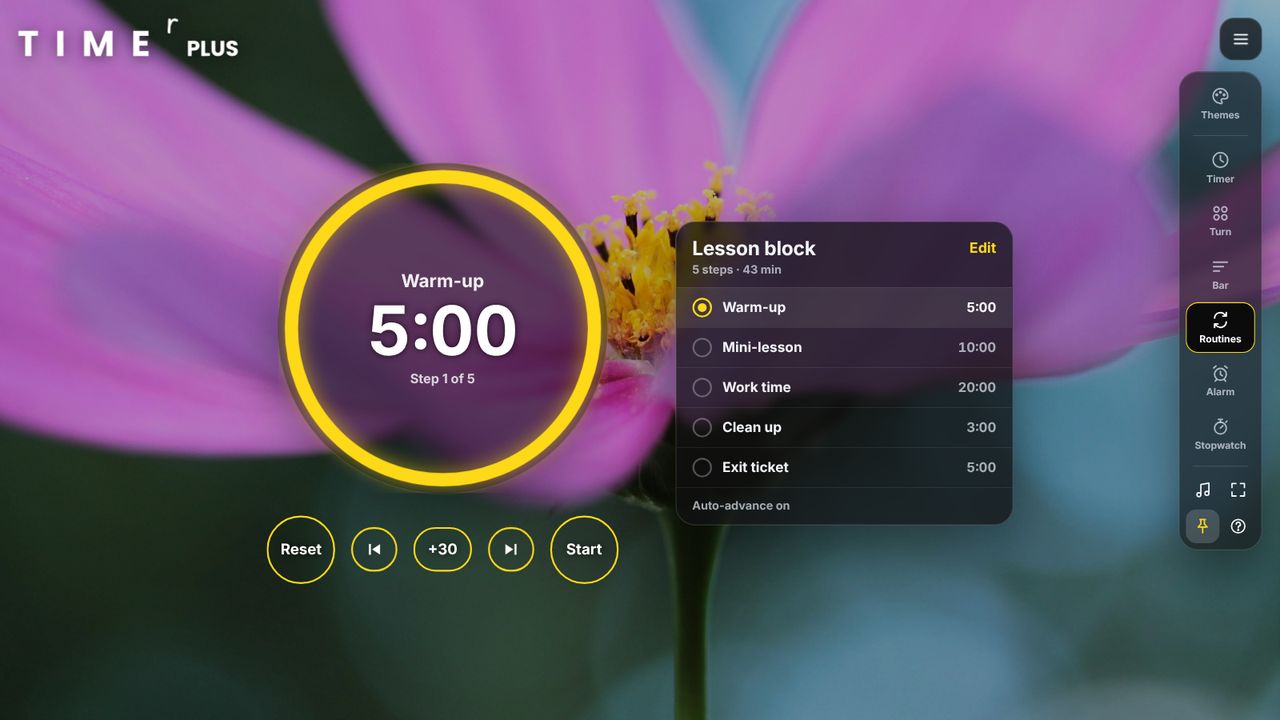
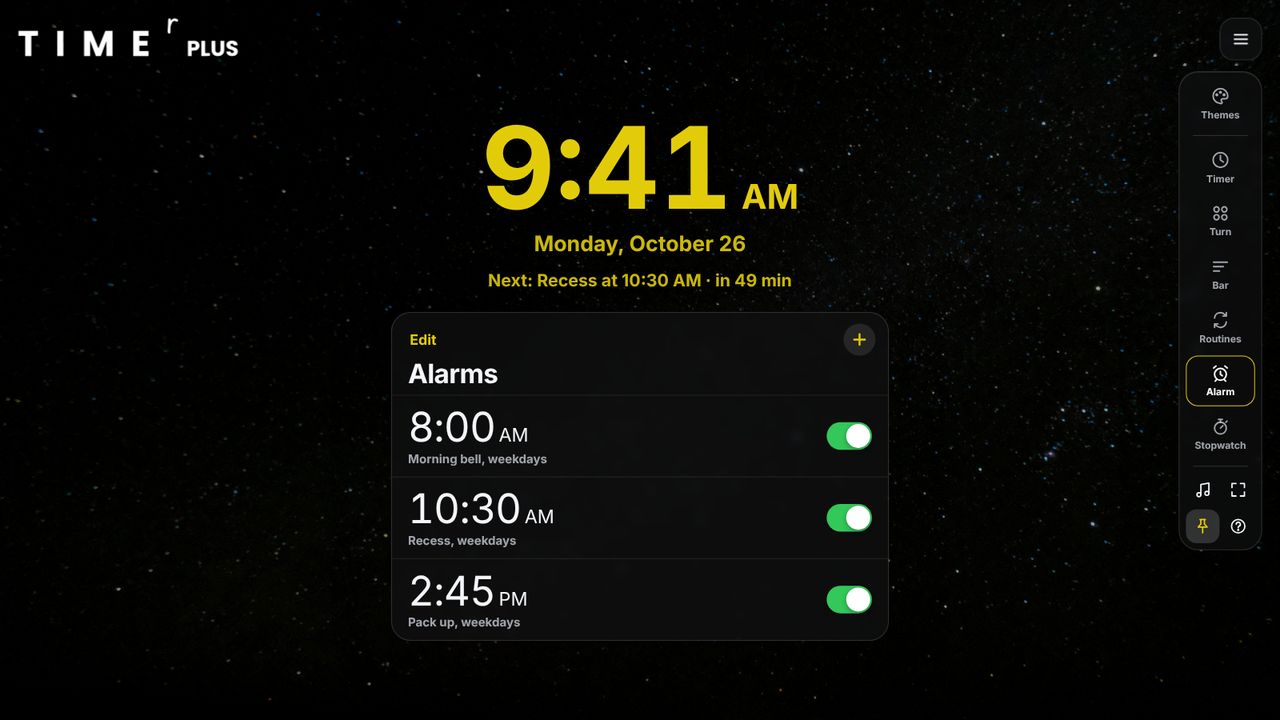
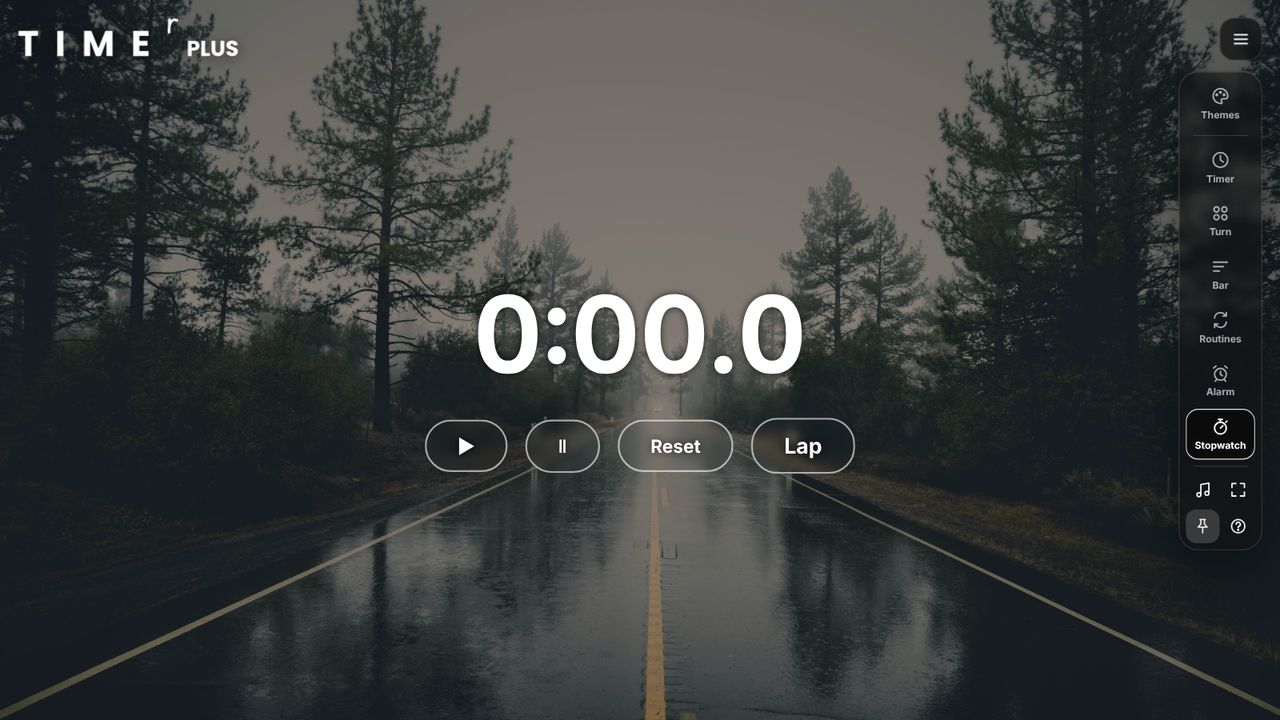
TIMEr PLUS: All in One Tool
Every RobsonEDU timer, now in one place. Run a countdown, give partners equal turns, step through a lesson routine, set class bells, or time with a stopwatch, with 35+ themes and a classroom music player. Your settings and routines are saved on your device.
New here? Tap in the tool for a quick tour. Want to download TIMEr PLUS as an app? Follow these instructions.
Jump Straight to a Tool
Pick a Theme
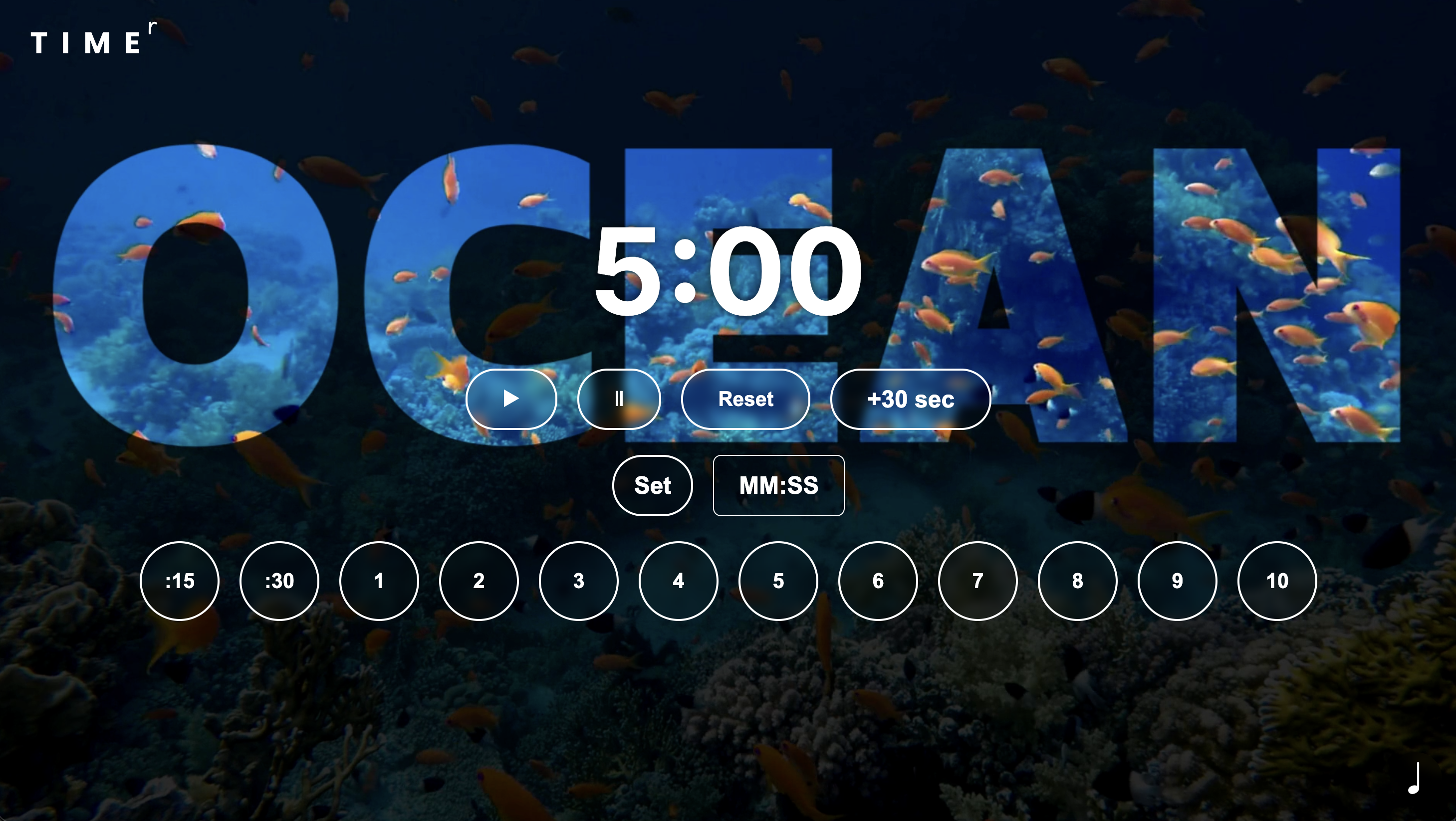
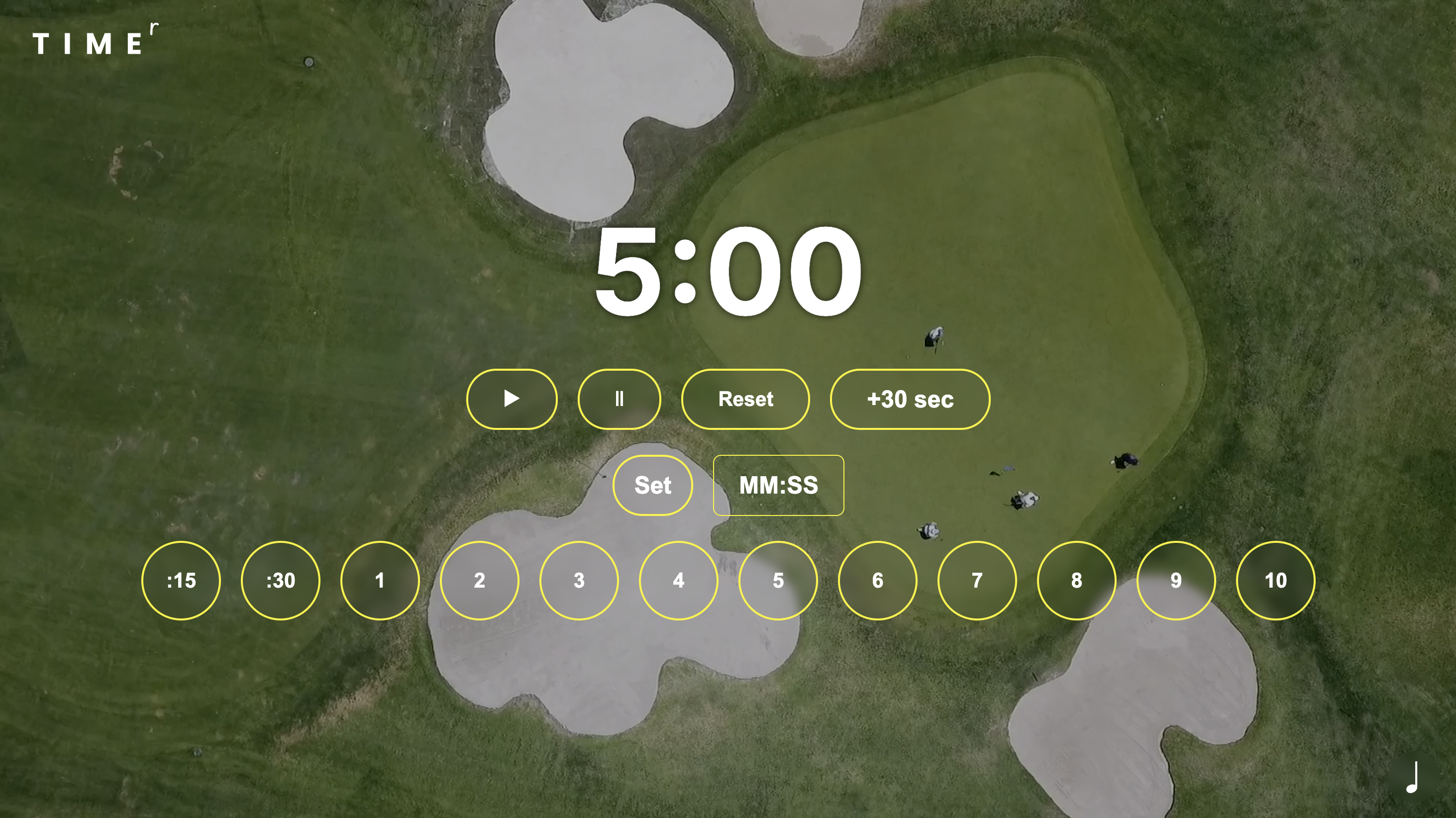
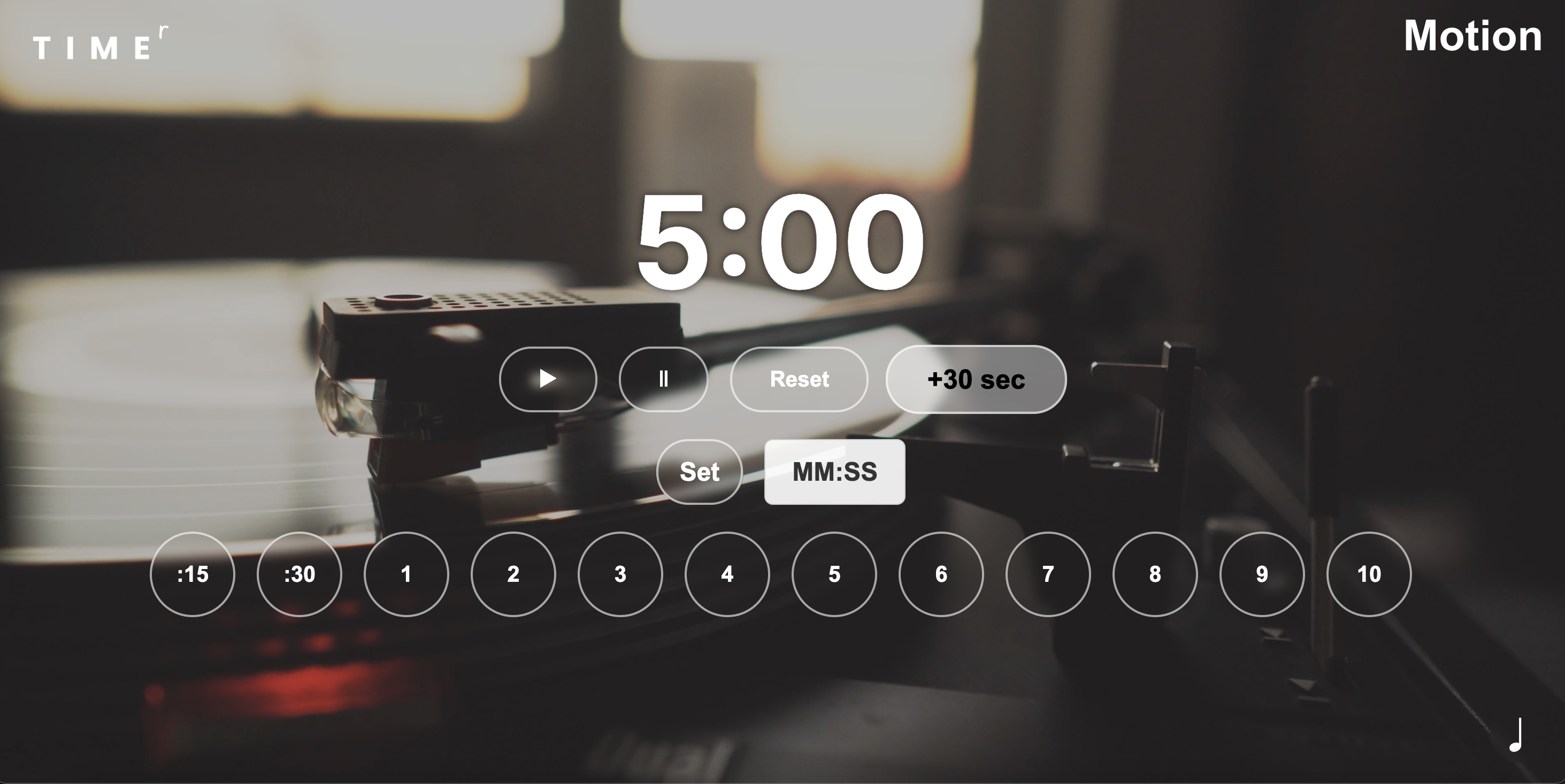
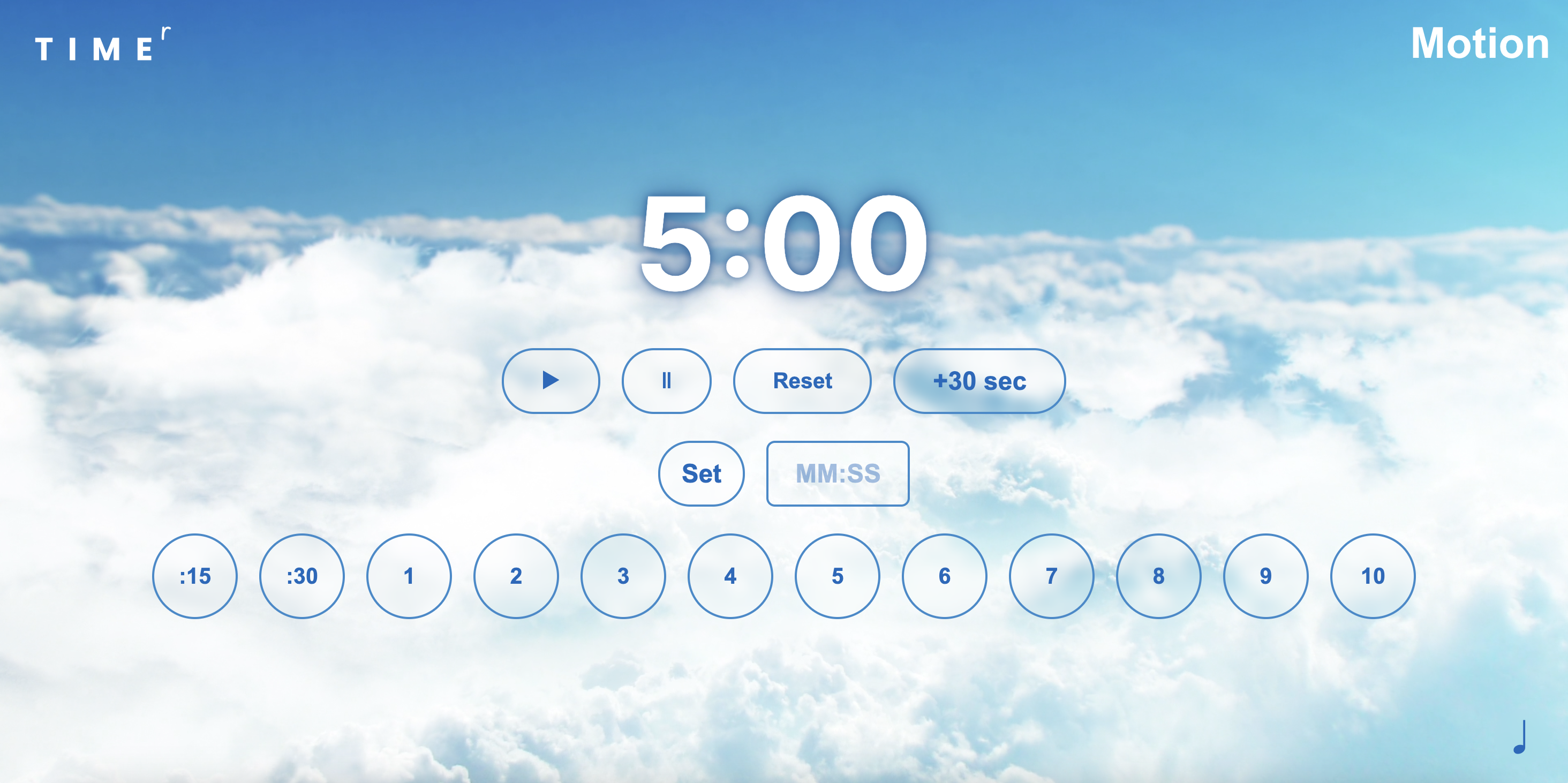
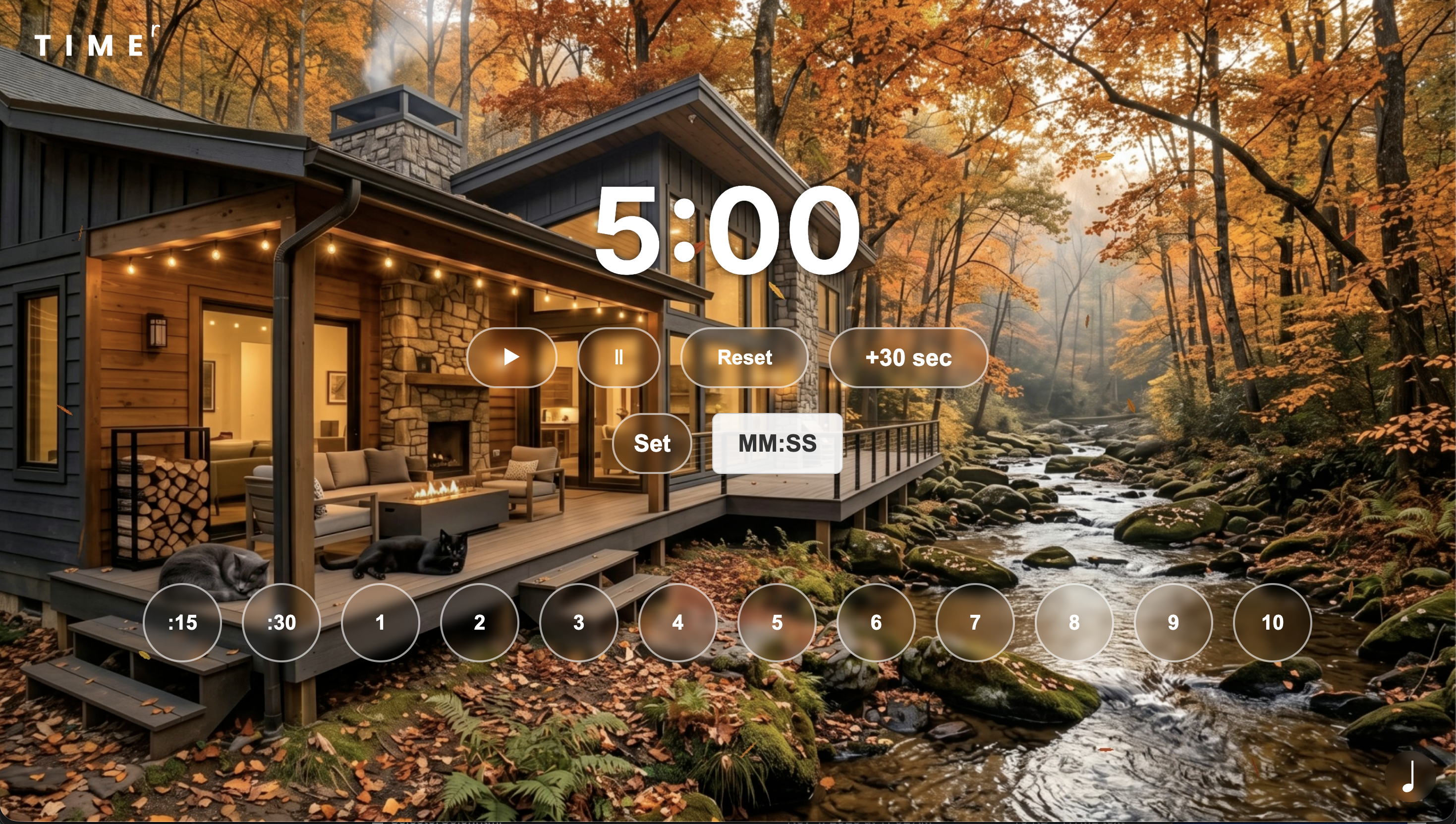
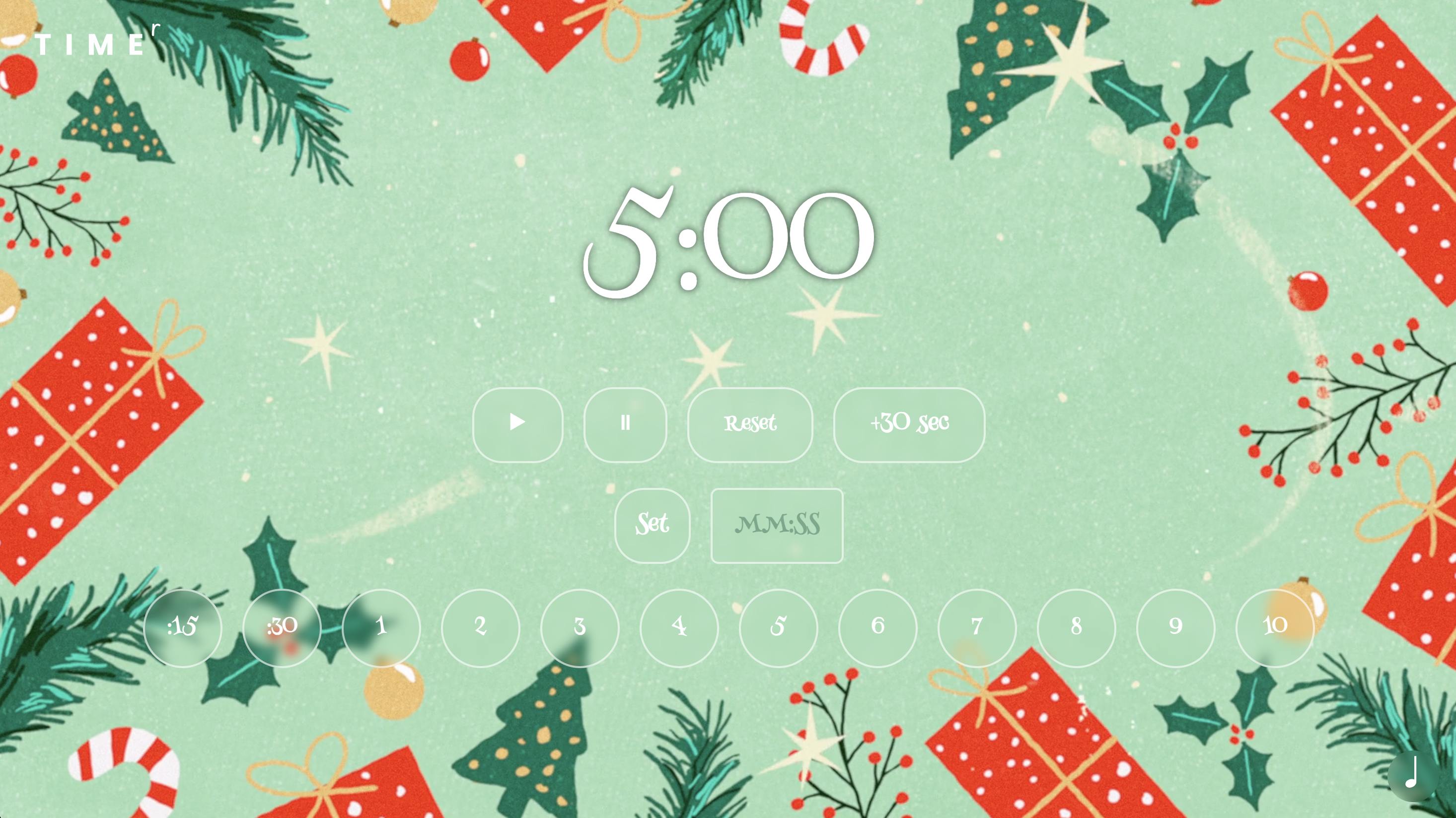
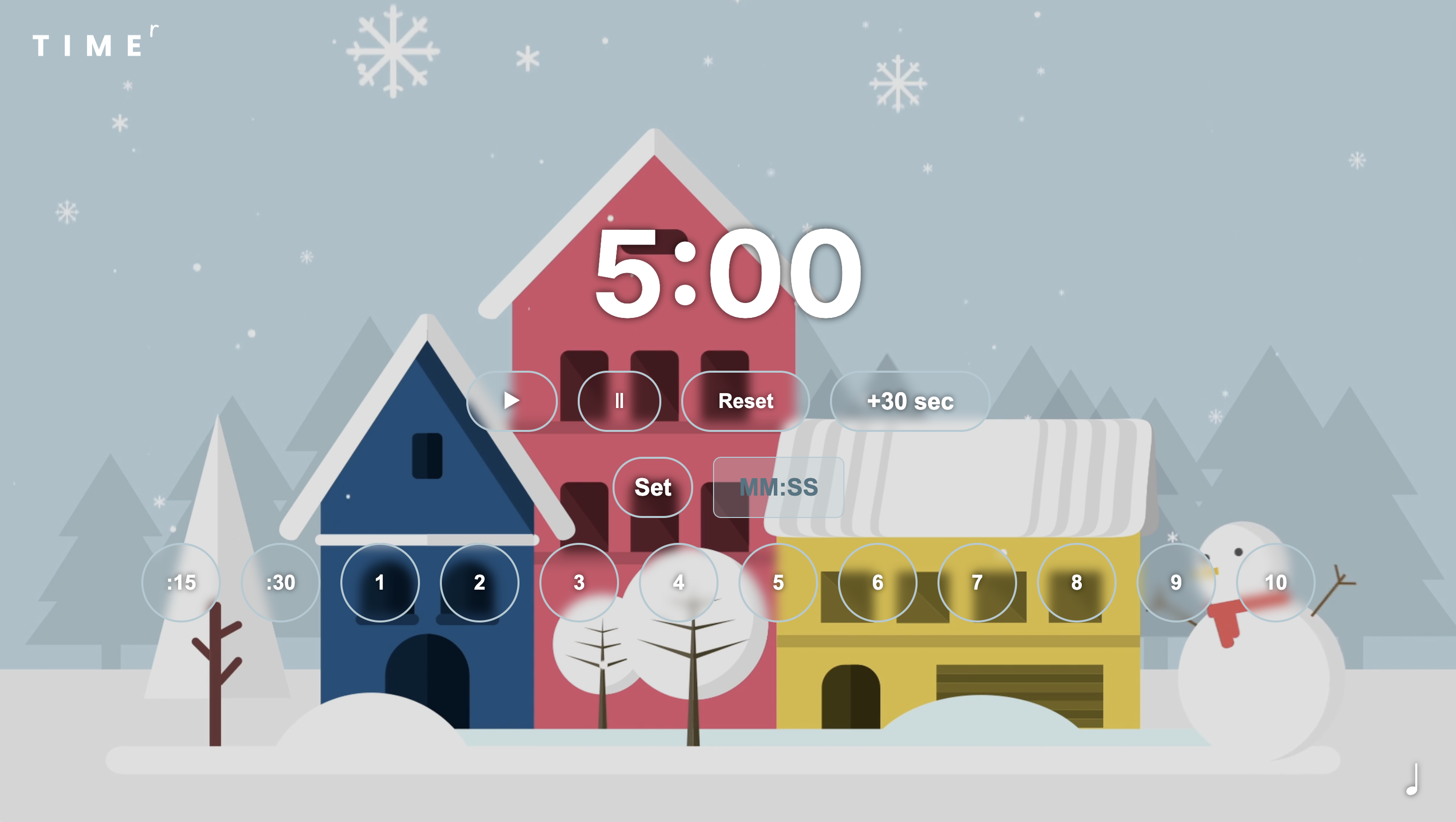
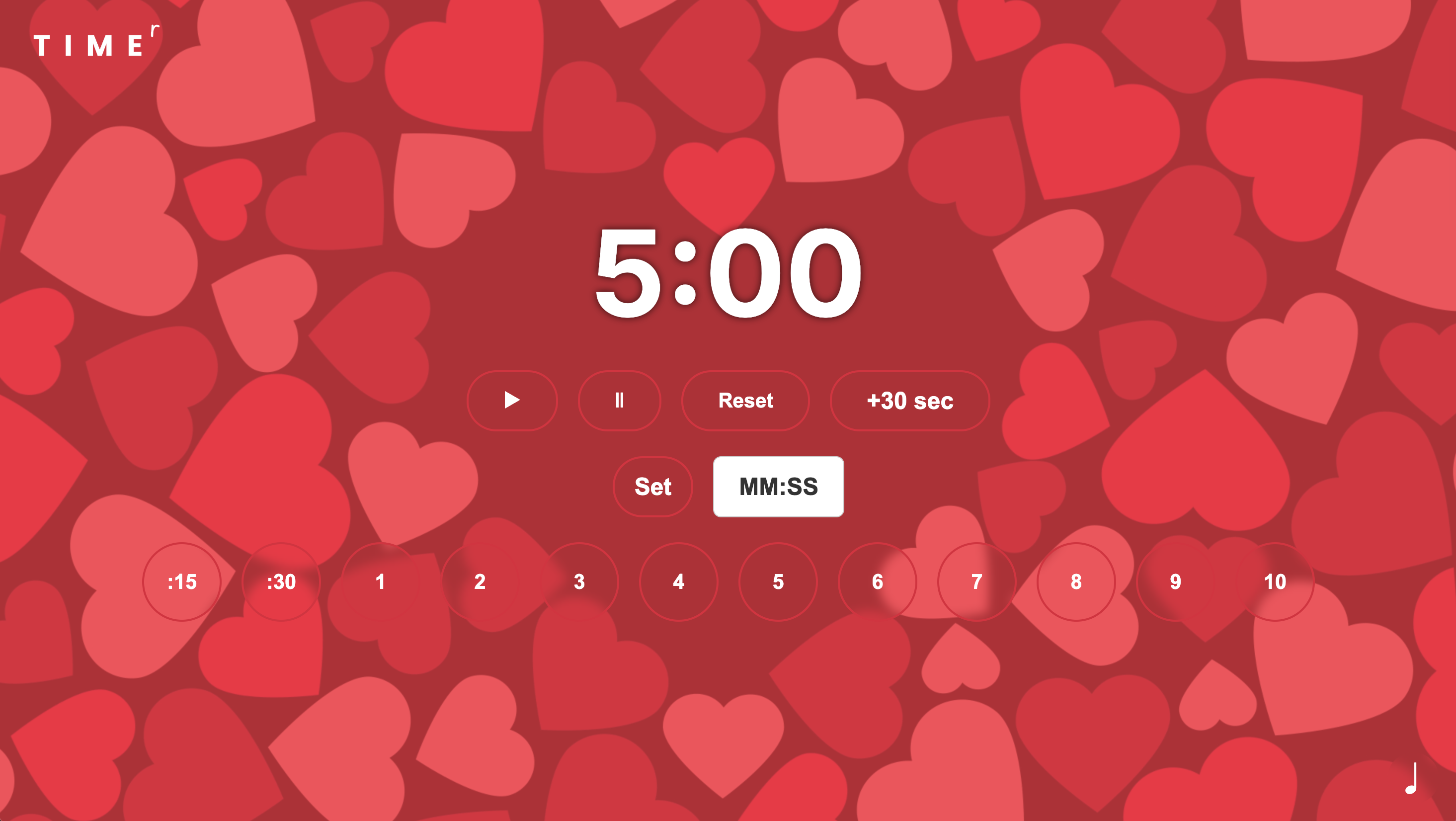
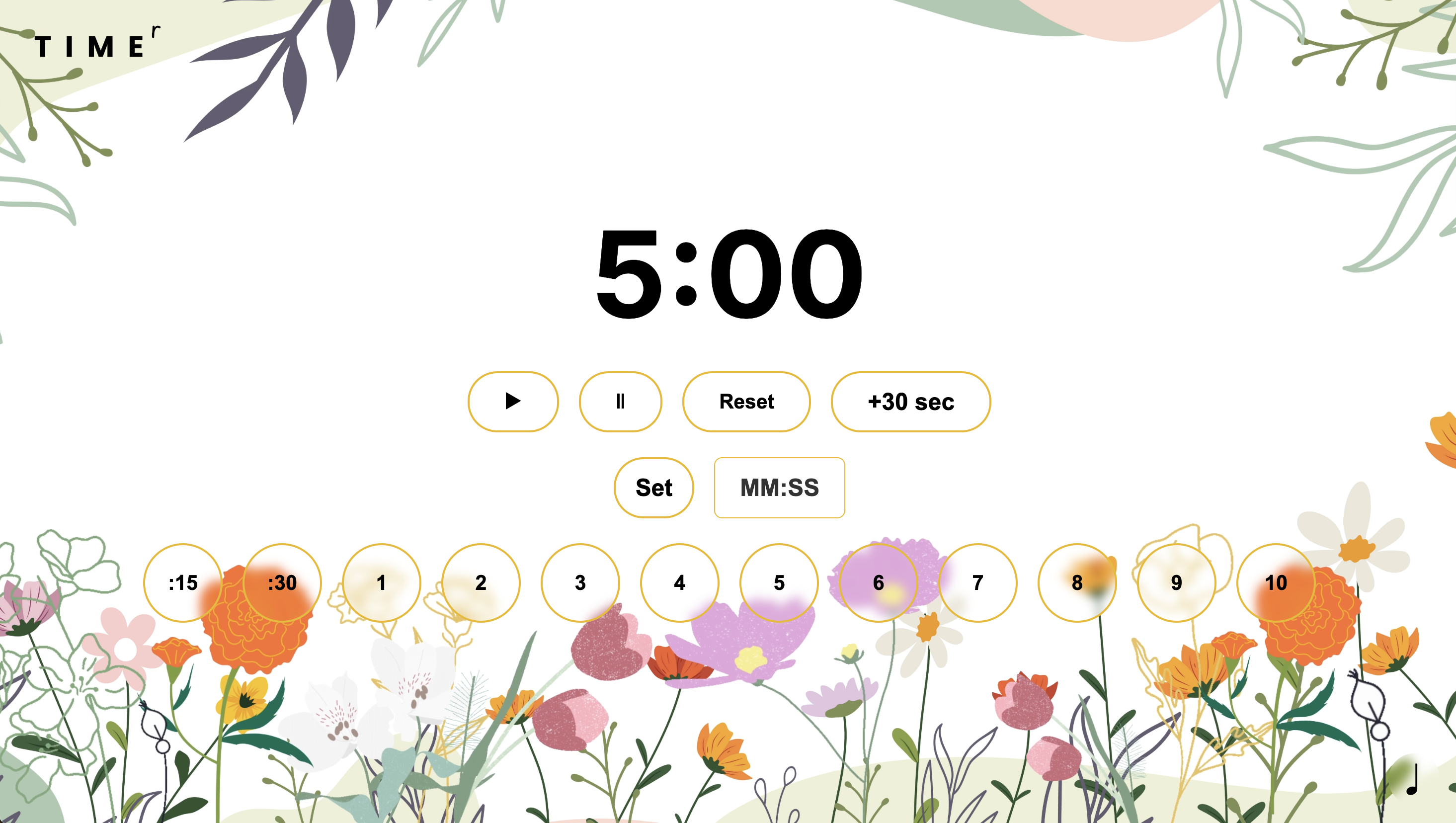
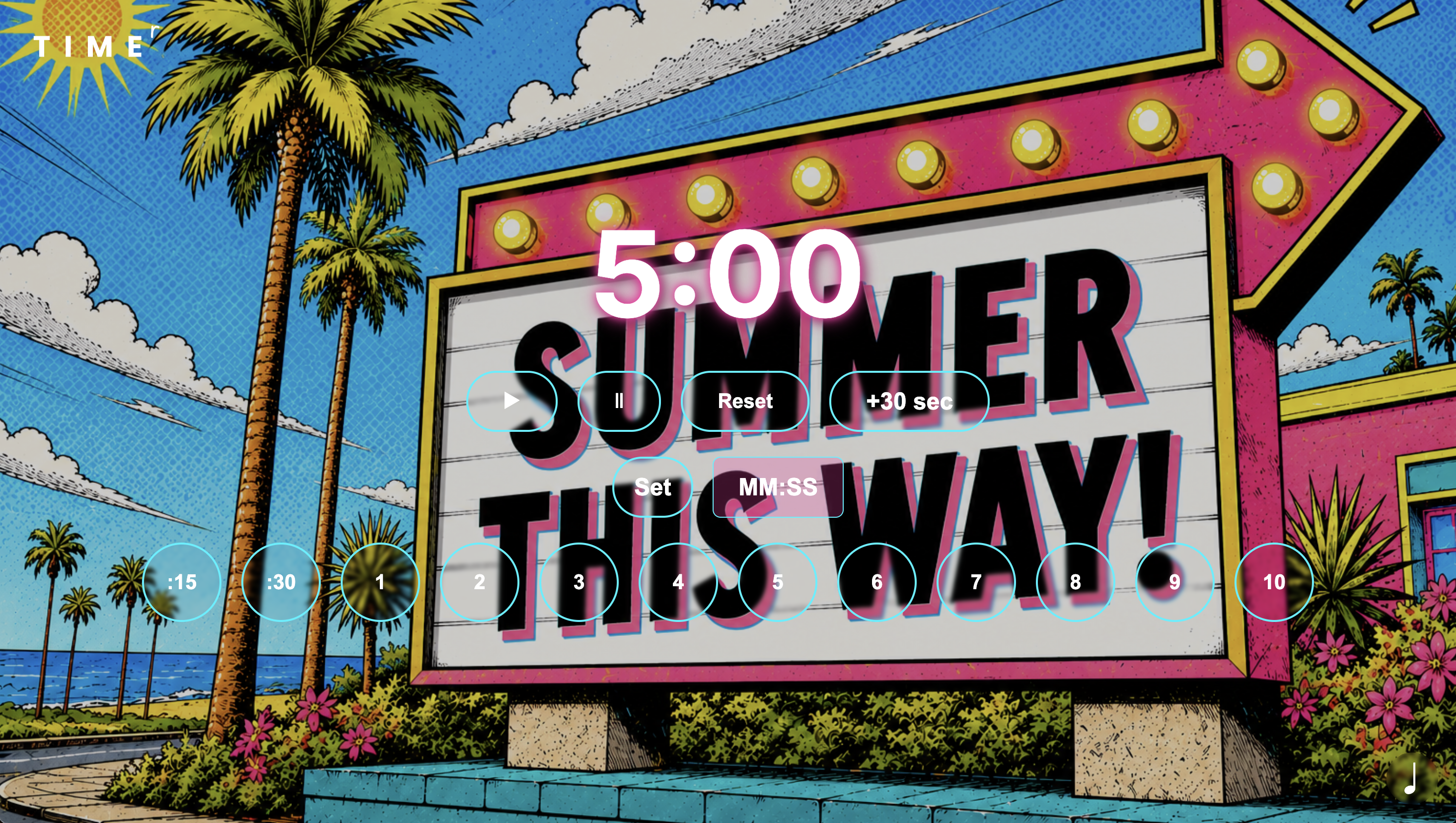
Pick a theme below to open the timer with that look. You can switch themes anytime from the menu in the top right corner.
Quick Jump: Static | Motion | Seasonal
Static
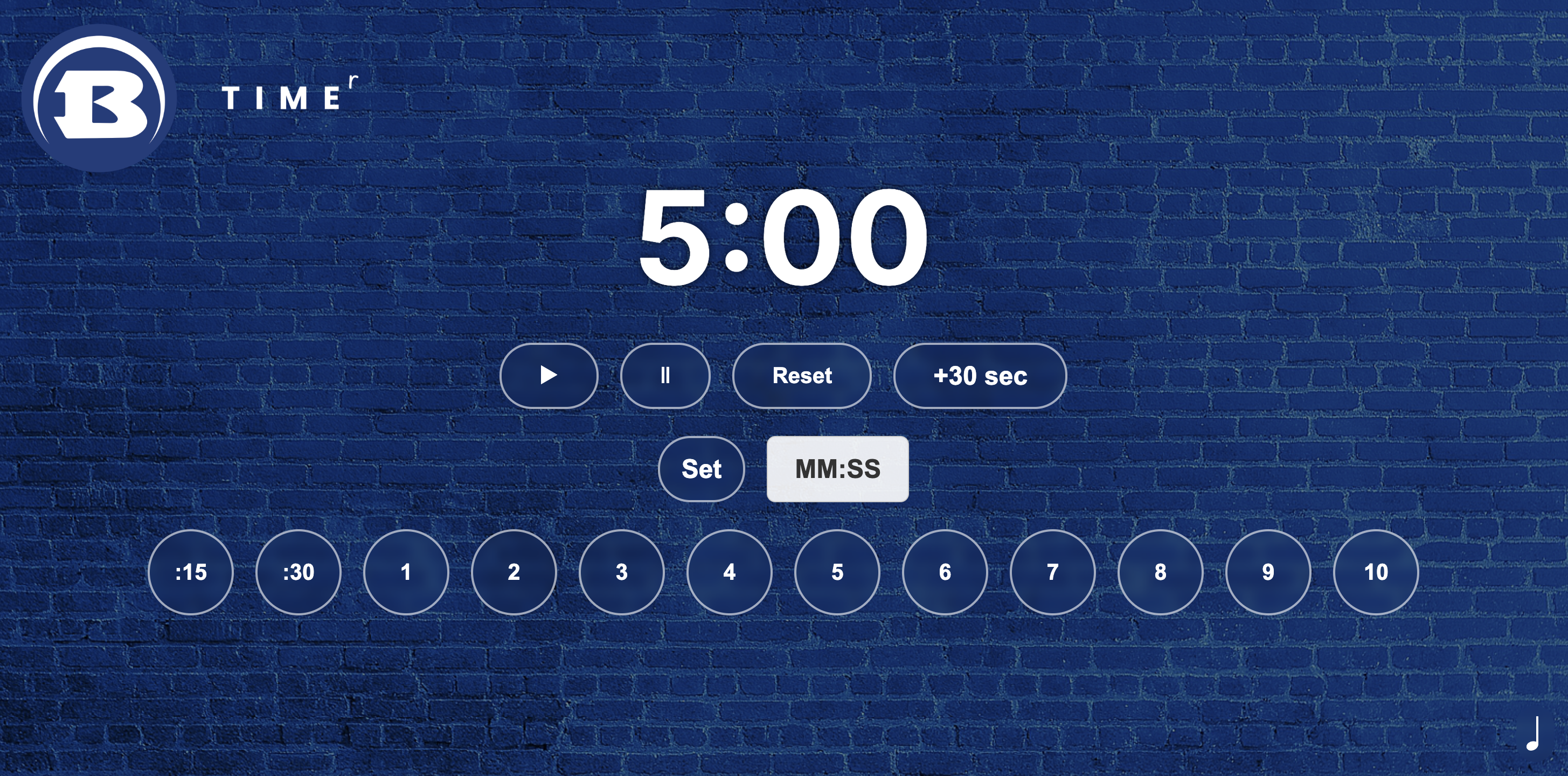 Bryant
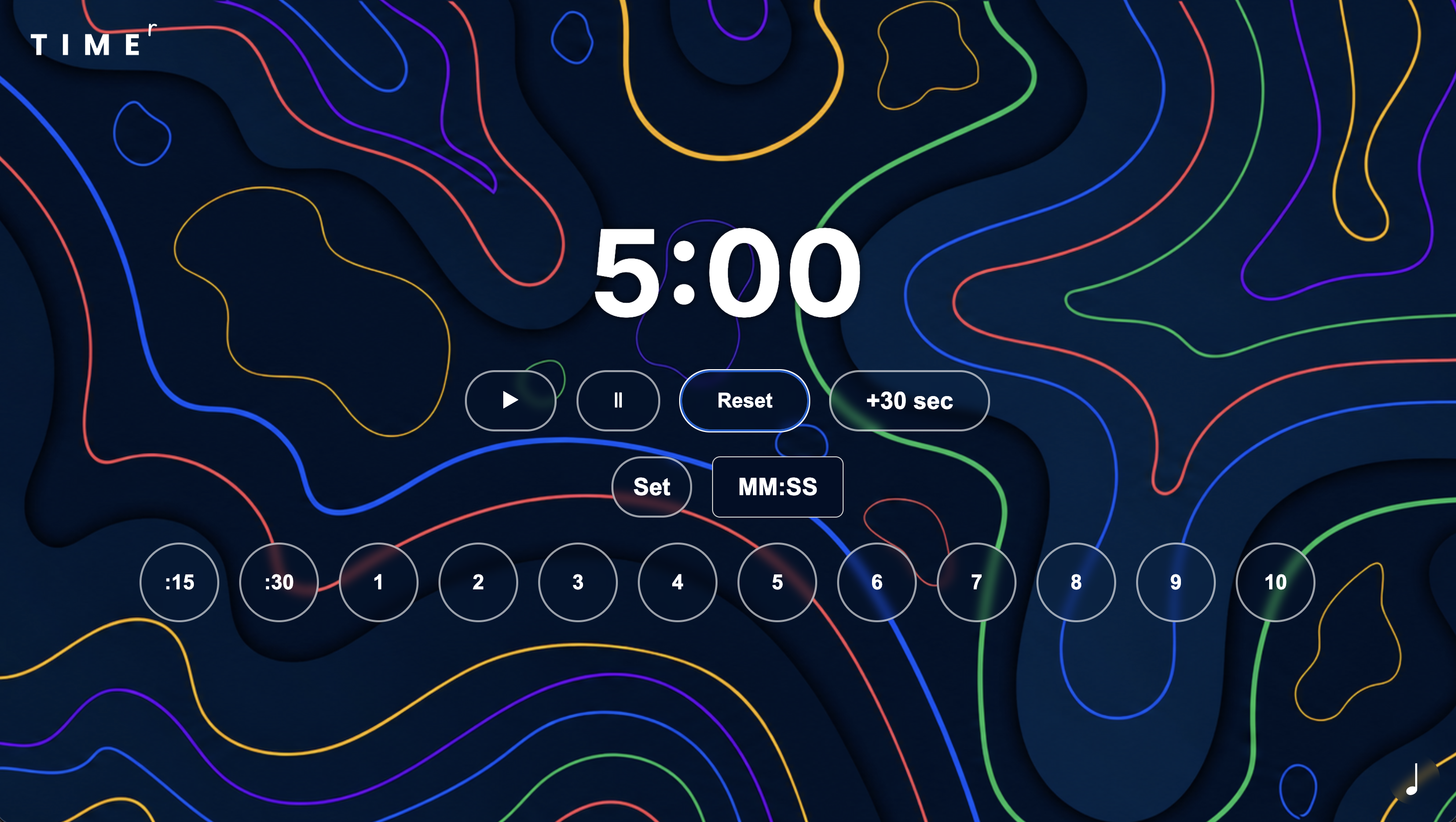 RGB Topo
 90s
 Road
 Crumpled Paper
 Abstract Art
 Colorful
 Color Dots
 Color Floaters
 Flower
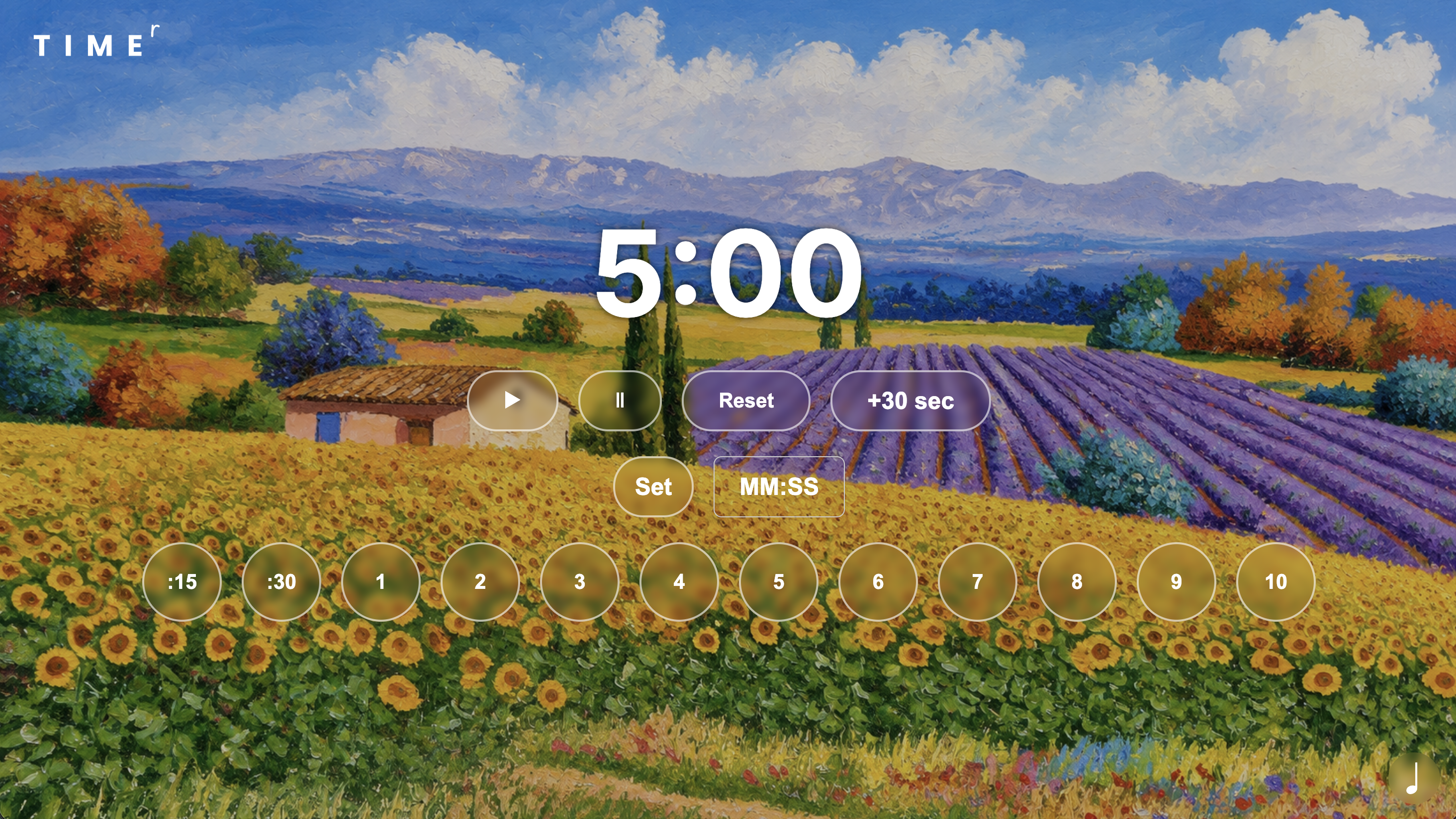 French Countryside
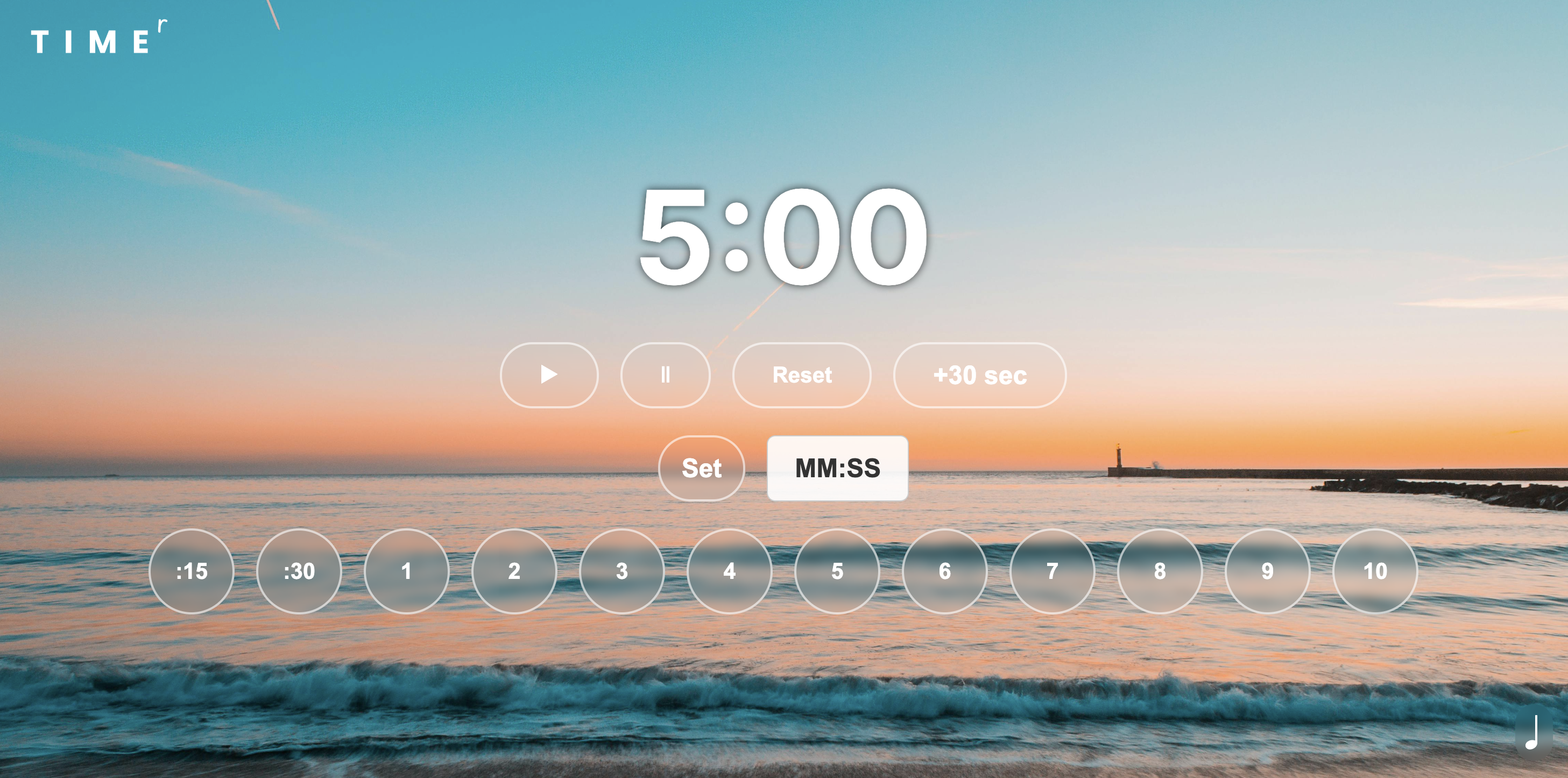 Beach
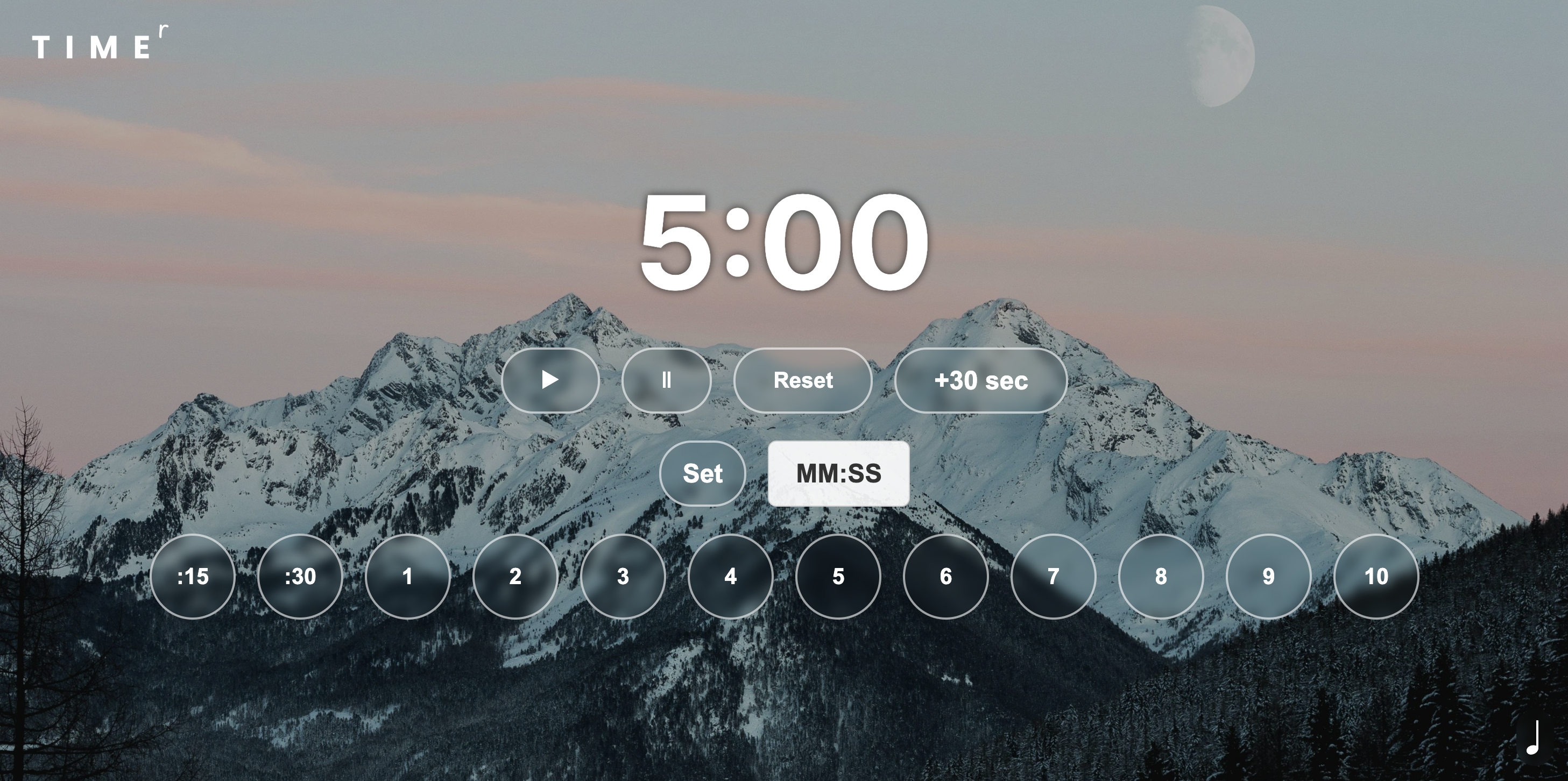 Mountain
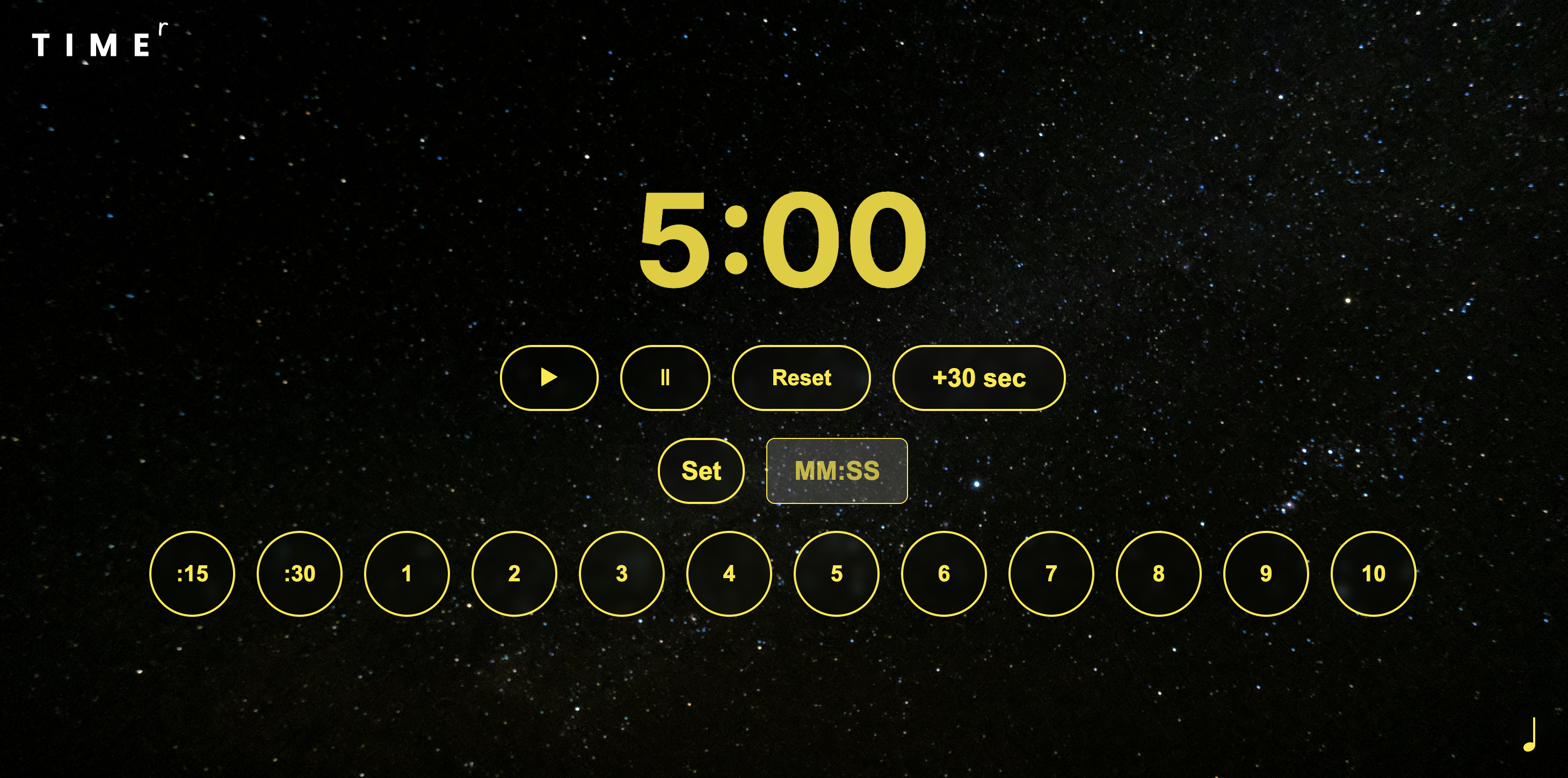 Star Wars
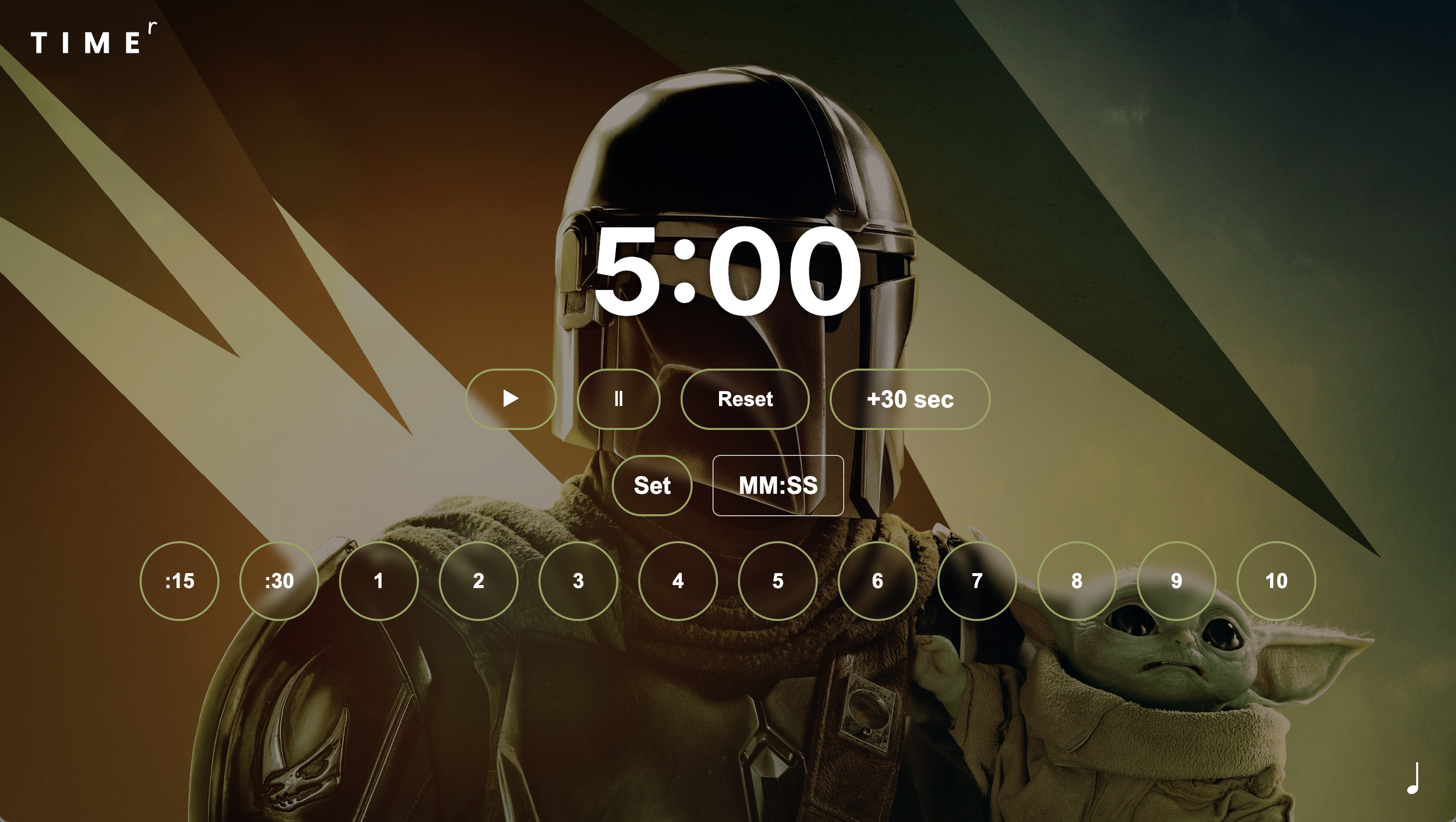 Mandalorian
 Dungeon Crawler Carl
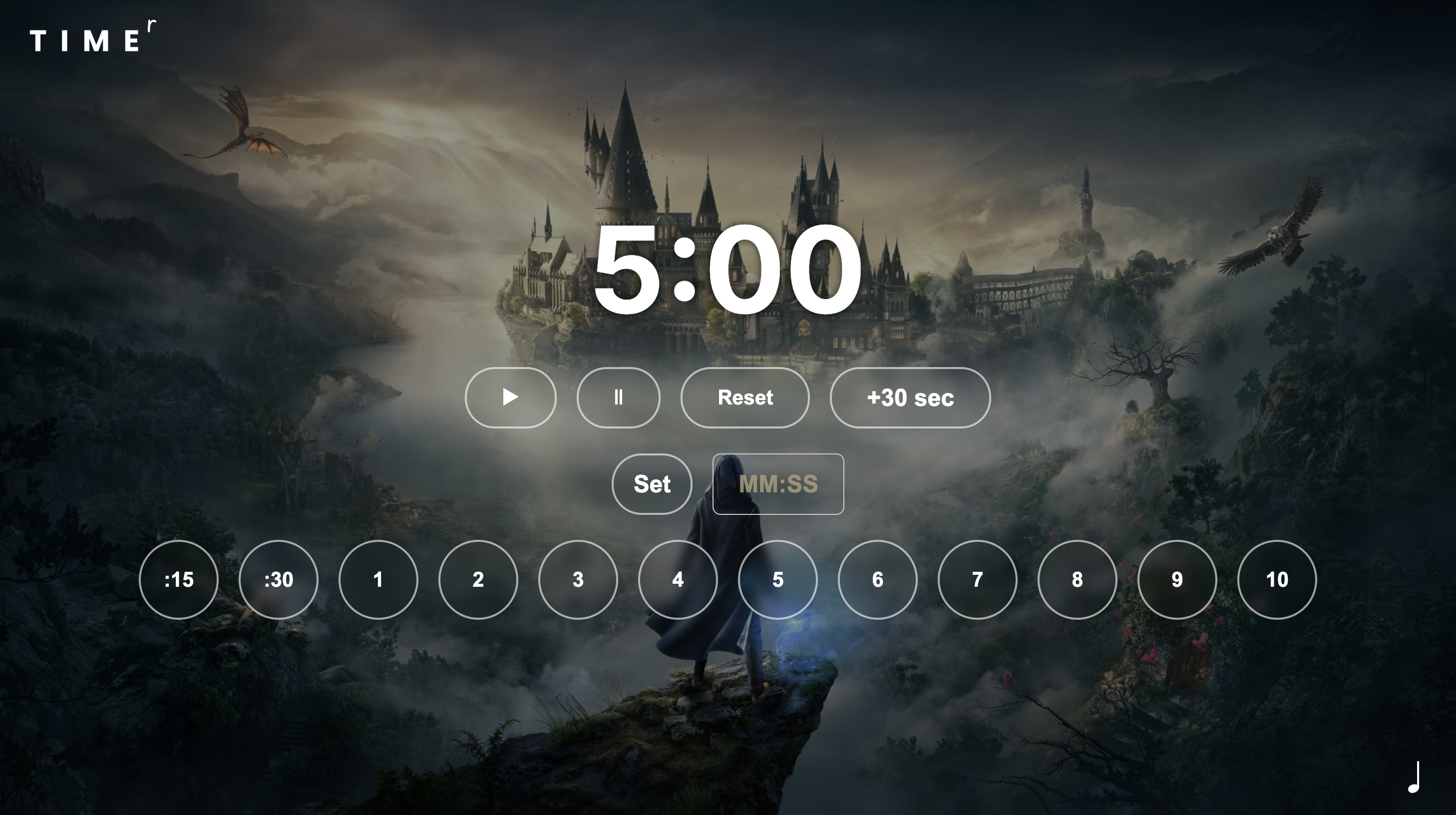 Harry Potter
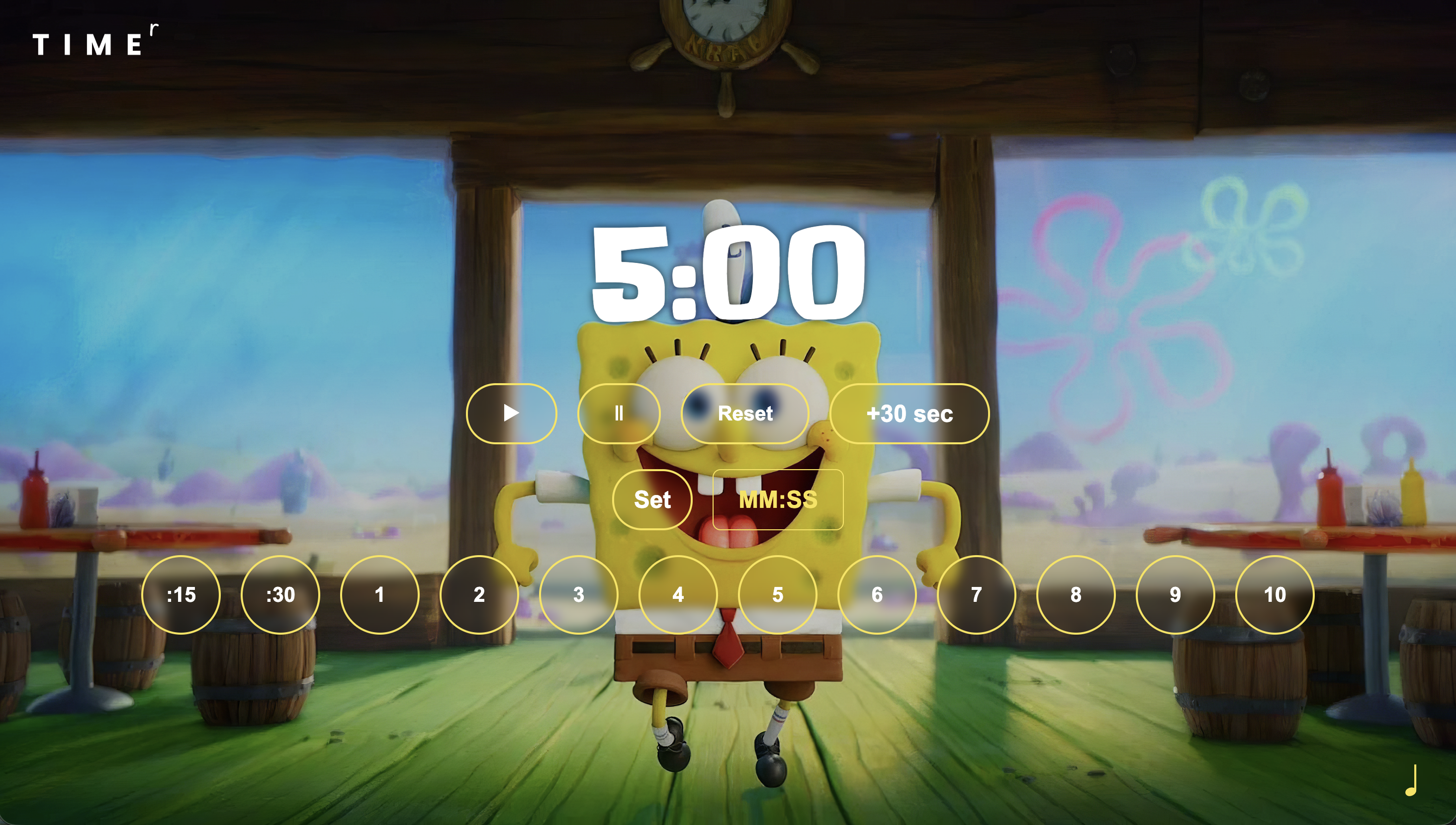 SpongeBob
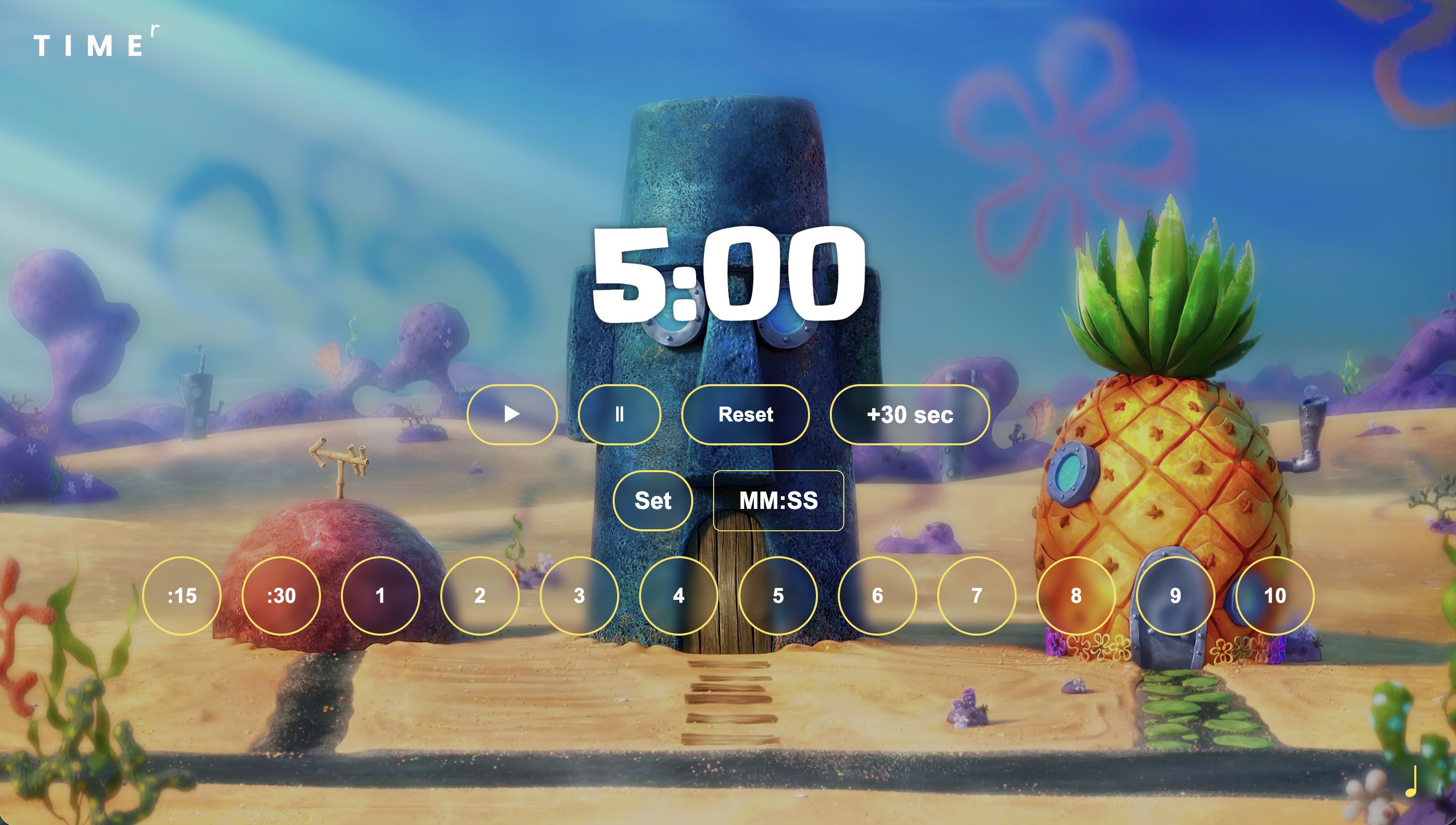 Bikini Bottom
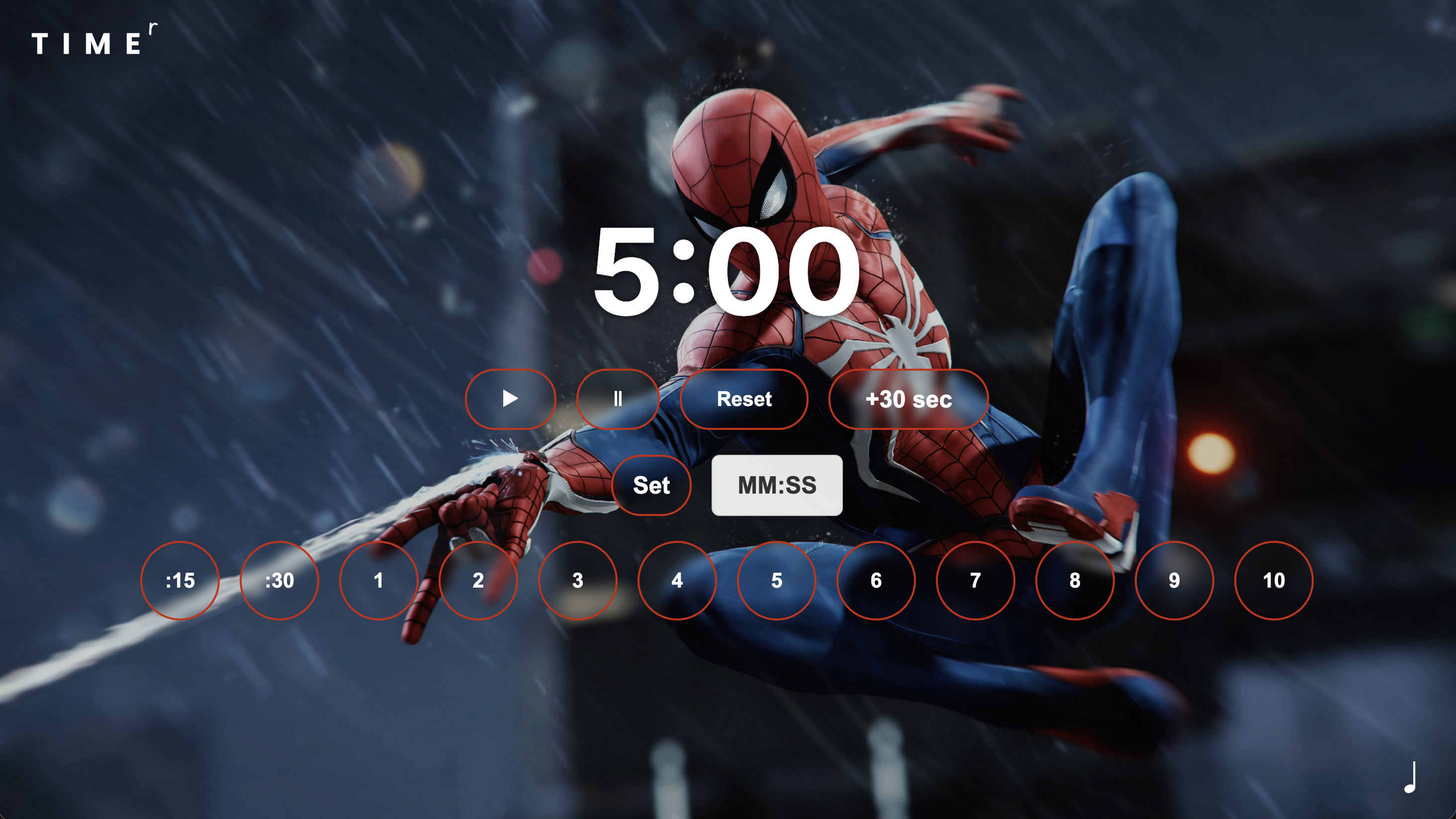 Spider-Man
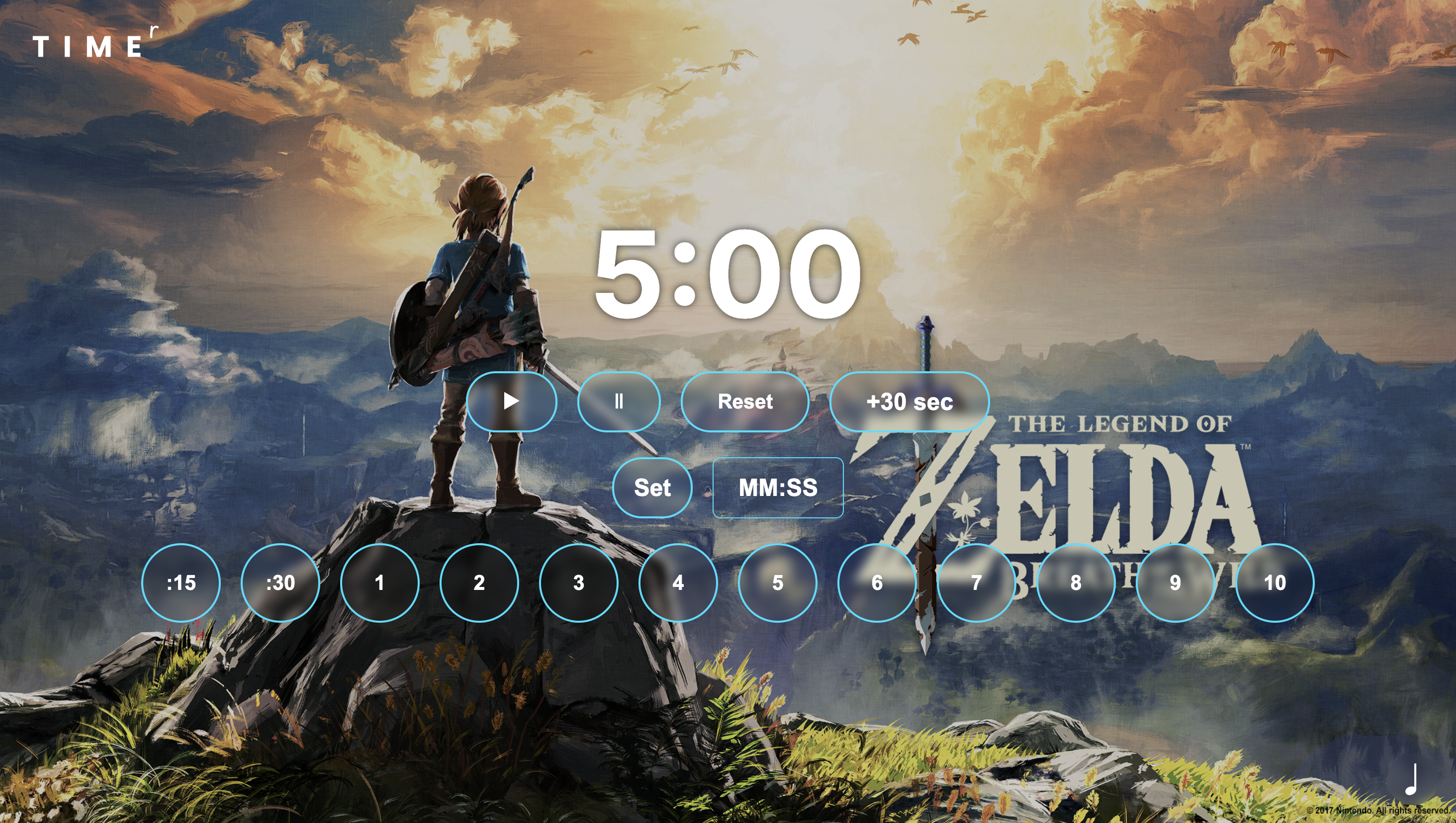 Zelda
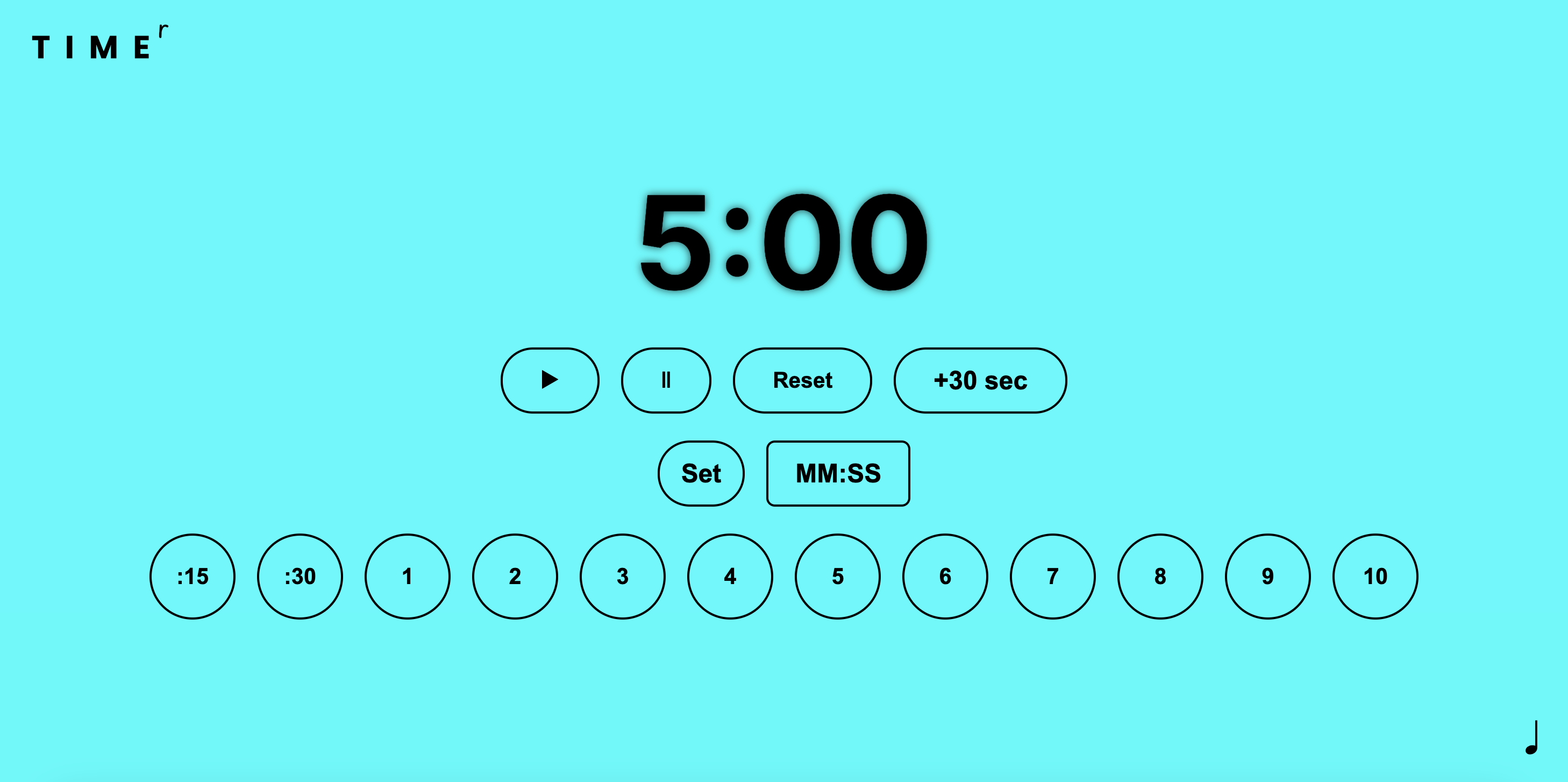 Neon Blue
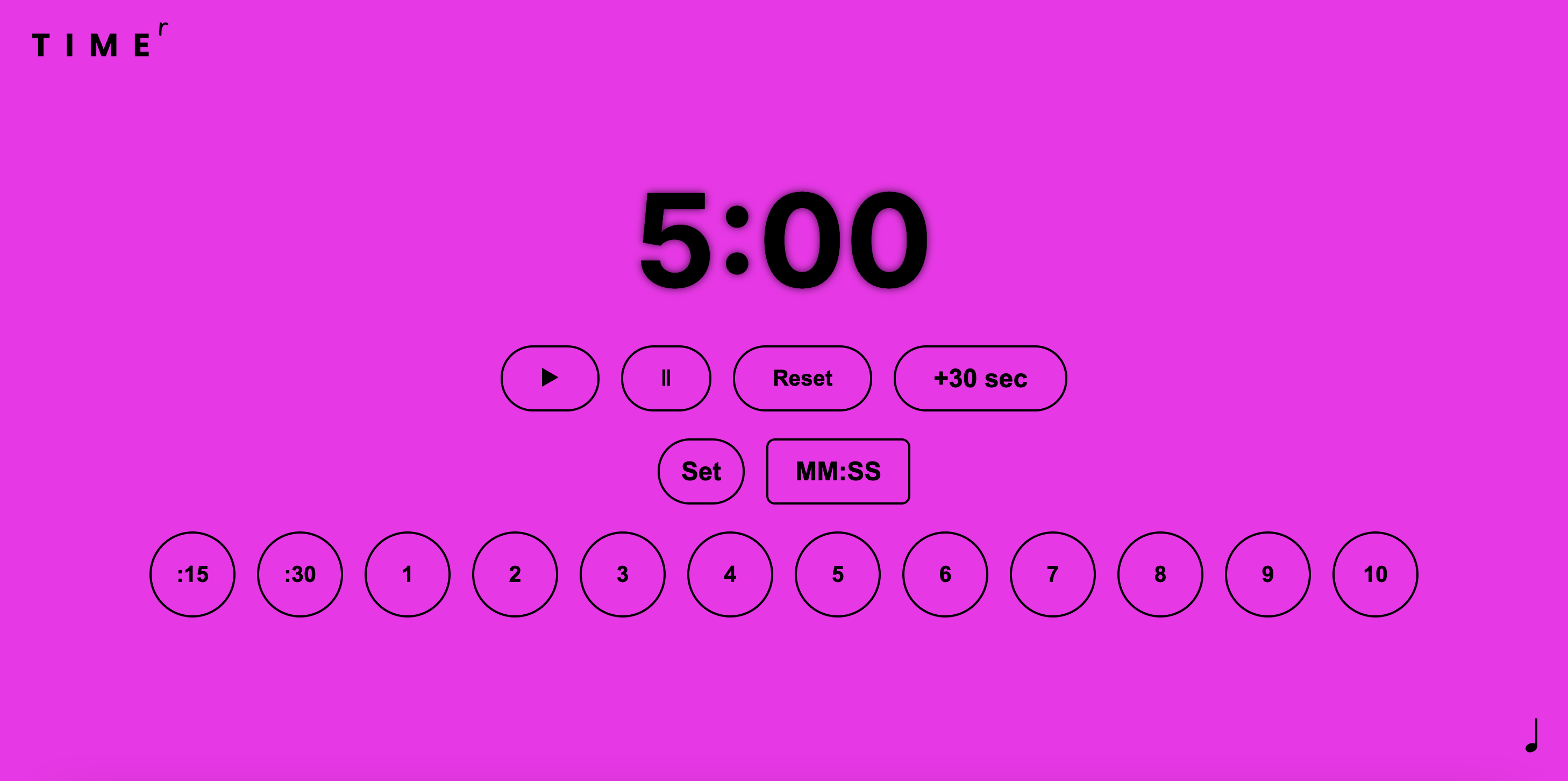 Neon Pink
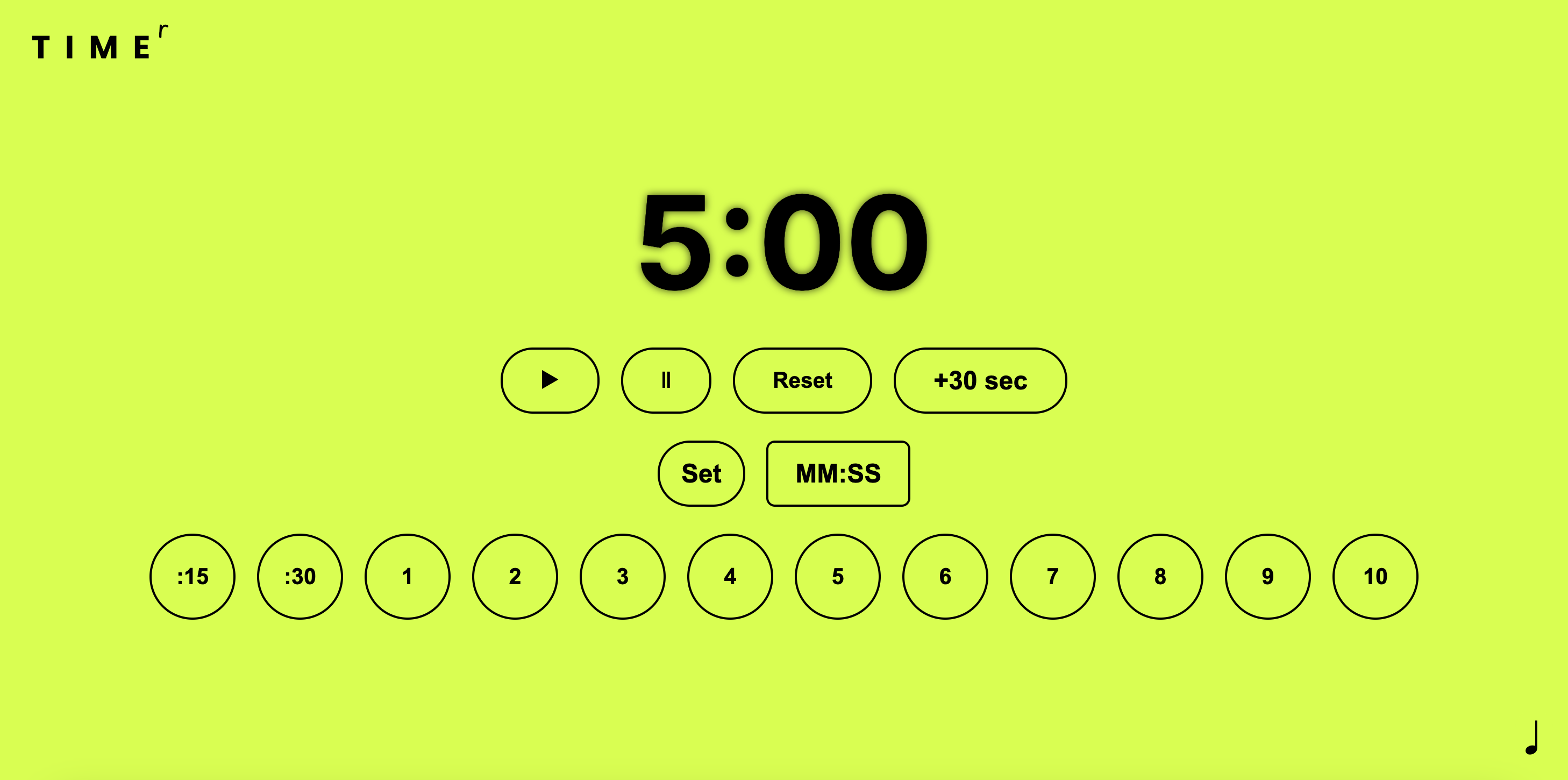 Neon Yellow
Motion
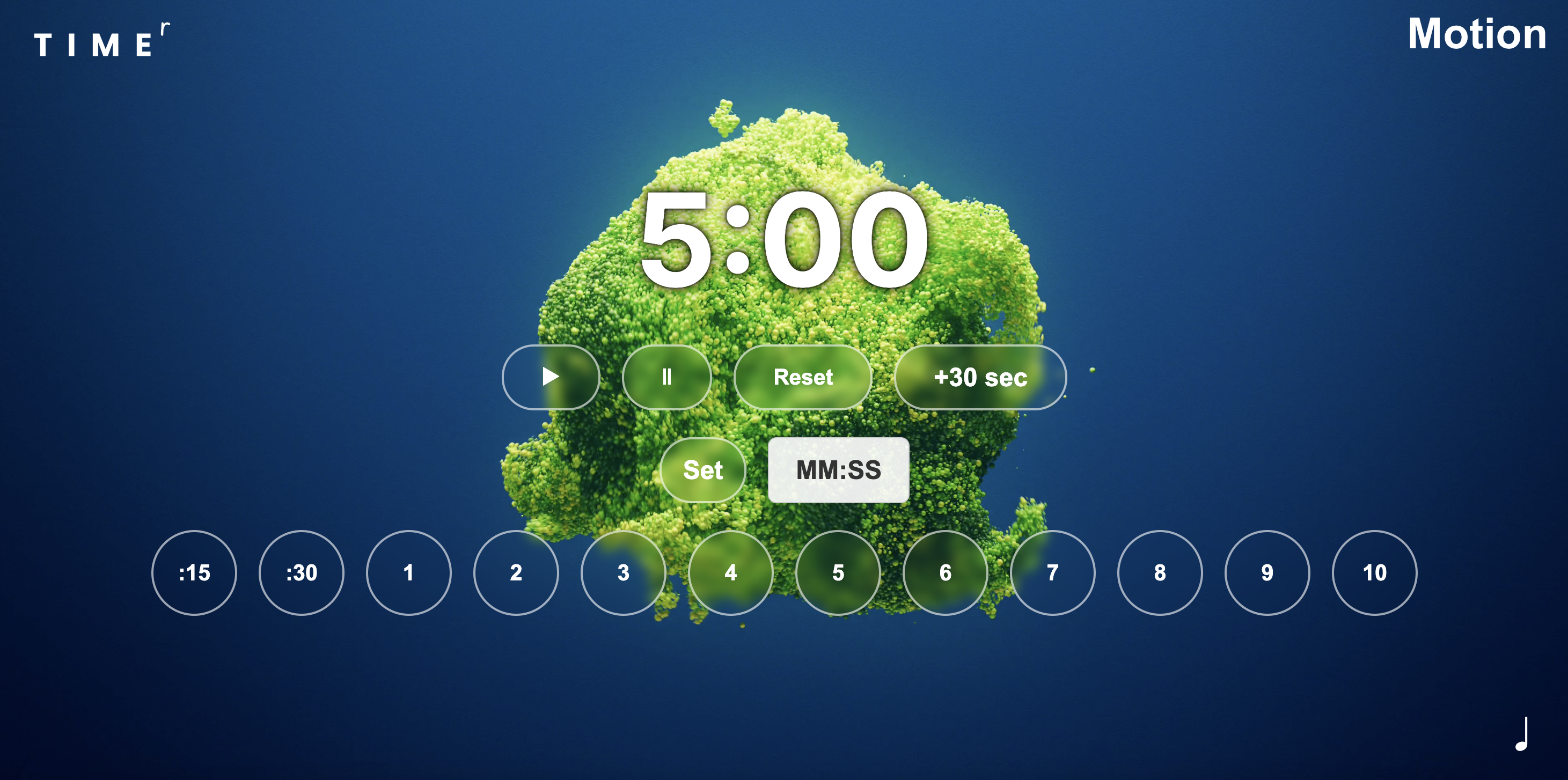
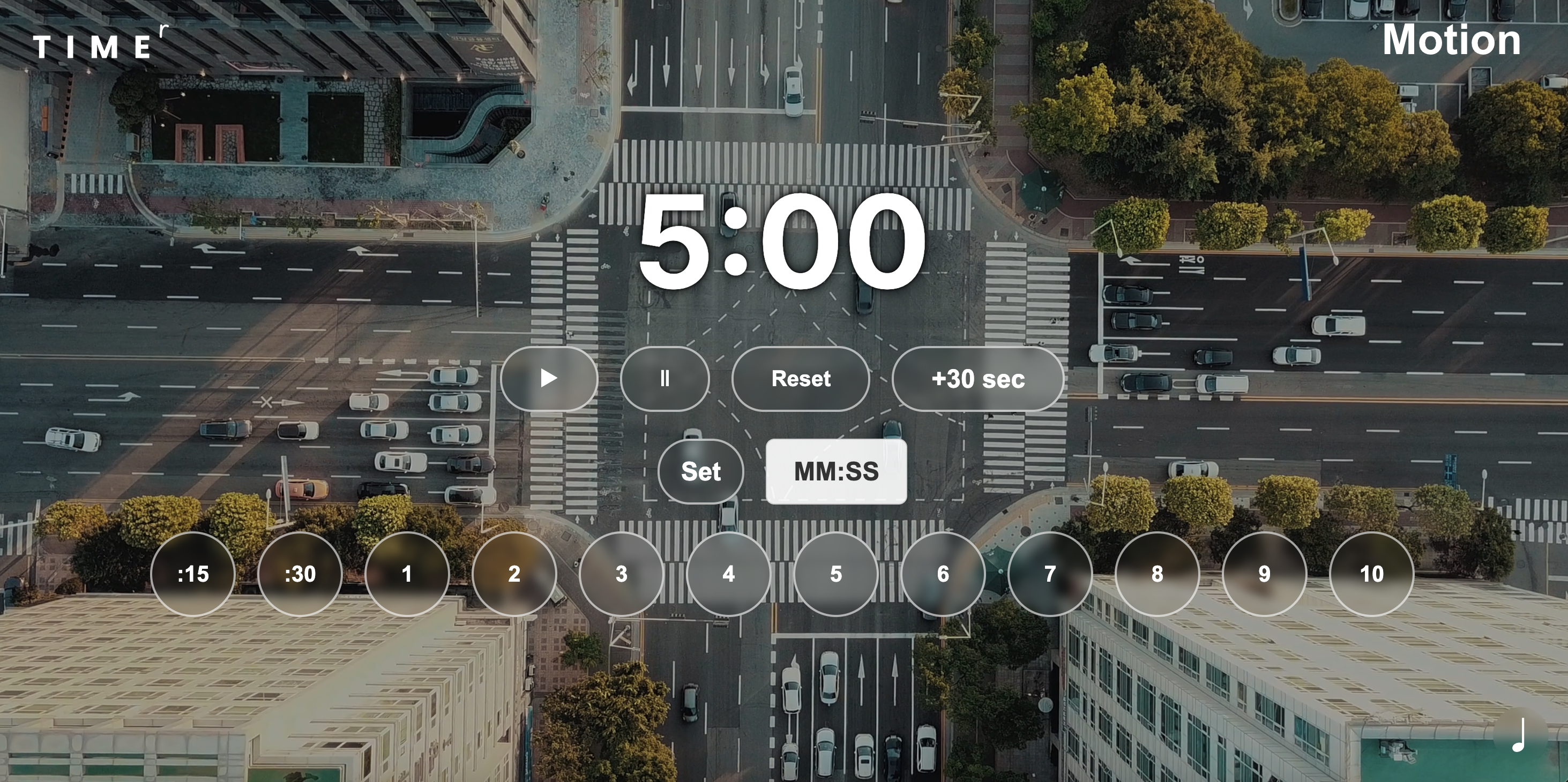



Seasonal


How to Use TIMEr PLUS
Written by Allen Robson, District Instructional Coach and secondary ELA teacher
TIMEr PLUS is a free classroom timer for teachers, built to be seen by the whole class. Run a countdown for bellwork, a turn timer for partner talk, a bar timer for team talk, a full routine that moves through each step of your lesson, alarms for the time of day, or a stopwatch. Pick from over 35 themes. Full screen, split-screen with a tab, or even float it over your Google Slides or PowerPoint. No sign-in, no ads.
What sets our timers apart is the seamless operation. The preset buttons are a game changer. You are in the flow of teaching and you say, “You have 2 minutes for this Quickwrite.” You tap the 2:00 preset button and the timer auto-starts. While they are working, you realize they need 30 more seconds, so you tap +30 sec. No time lost for the in-the-moment adjustment. Similarly, if students are finishing earlier than you expect, you can tap :30 and tell them time is almost up, again without disruption. You can set custom time intervals easily. There are many themes, from aesthetic to motion to seasonal, all in one place. Use the music button to play background music while the timer is running, with the built-in classroom-safe playlist, or link your favorite YouTube playlist.
How I use it in my classroom
I use visible timers for almost everything. Many teachers keep time on a watch, a phone, or in their head. The problem? Students can't see it. A visible timer keeps both the students and the teacher on track.
Bellwork gets a timer because it helps students and the room get settled, focused and ready for learning. Turn and talks get a timer too. Instead of “Discuss with your partner” and a conversation that keeps going and going, on topic or not, the timer adds accountability to the task.
I teach with a chunked, gradual release model. I model a math problem. Students try the next one on their own. Then they share with a partner. Instead of giving students 20 minutes to work problems independently, I run a structured stop-and-go workshop, and timers are a must. Time can easily get away from the teacher. A visible timer adds urgency, efficiency and accountability.
Get started in five steps
- Open TIMEr PLUS and pick a theme. A quick tour runs the first time; tap or press ? to replay it.
- Pick a tool from the dock: Timer, Turn, Bar, Routines, Alarm or Stopwatch. The number keys 1–6 switch tools too.
- Set the time. Tap a quick preset or press Set to choose your own. Need more? Tap +30 sec while it runs.
- Start. Press Start or Space to start and pause. Press R to reset.
- Put it where students can see it. Tap or press F for full screen. Tap or press P to pop it out so it floats over your slides.
Which timer should I use?
| Timer | A big countdown for bellwork, independent work, cleanup and transitions. A warning sound plays near the end. |
| Turn | Partner and team talk. Choose 2, 3 or 4 turns and a time for each; the timer moves from turn to turn so everyone gets equal time. |
| Bar | A bar that shrinks as time runs out. Easy to read from across the room. |
| Routines | Chunked lessons and everyday procedures. Build steps, and the timer runs them in order. Auto-advance and repeat are built in. |
| Alarm | Reminders at a set time of day: lunch, specials, dismissal. Choose the days, a label and a snooze length. |
| Stopwatch | Timing how long something takes, with laps. Great for fluency or racing your own transition time. |
Teacher questions
Why use a visible timer instead of my watch or phone?
Because students can't see your watch. When the time is on the board, students pace themselves, start faster and stay on task. And you stay on schedule, because time can easily get away from the teacher.
How do I keep a timer on screen while I present my slides?
Tap the Pop-Out button or press P. The timer opens in a small window that floats on top of Google Slides, PowerPoint and other apps. Drag its corner to resize it. Close it any time to bring the timer back. Pop-Out works best in Chrome or Edge.
How long should a turn and talk be?
Short. Start with 30 seconds to a minute per partner and adjust. I've found it's better to give not enough time than too much. When there isn't time to waste, you'll get better participation because of the sense of urgency. The Turn timer gives each partner the same amount of time and moves to the next speaker on its own, so one student doesn't do all the talking.
How do I use Routines?
For common, repeated procedures: start of day, end of day, going to lunch, cleanup time. Build your steps once. An end-of-day example: Clear desk 2:00, Wipe desk 1:00, Get and pack bag 2:00. Turn on auto-advance and it moves from step to step on its own. Save it to My Routines and load it tomorrow.
How do I time a stop-and-go workshop lesson?
Split-screen the timer with your instructions or worksheet. For example: model the first problem for 3:00 while explaining your thinking, students try it for 1:30, partner share for 1:00. Then a class share-out, so you can check for understanding. Use the presets to add and reduce time as needed. If you find a standard flow you like, you can even save it as a routine in Routines.
Can I play music while the timer runs?
Yes. Tap the Music button or press M. It plays the built-in classroom playlist, and you can add your own YouTube playlist links.
Can it go off at a certain time of day?
Yes. Use Alarm. Set the time, pick the days (weekdays, every day, or your own), add a label like “Lunch” and choose a snooze length.
Where are my settings and routines saved?
In your browser, on your own device. There's no sign-in, and nothing is sent to RobsonEDU.
TIMEr PLUS is free, ad-free and needs no sign-in. Your settings stay on your device. Read how we handle privacy.